Brief Overview
The WalkMe Communication Center lets you create and send notifications throughout your organization, including to specific audiences.
Audiences let you define exactly who should receive a notification — your entire organization, a specific team, or a regional group.
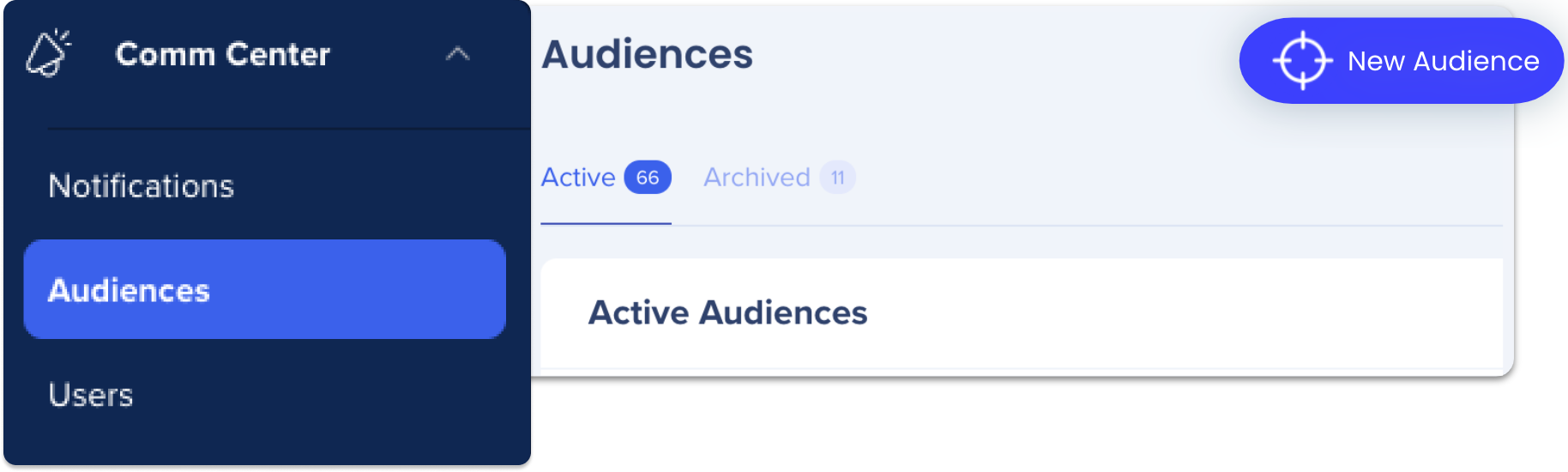
The Audiences page lists all created audiences with the following information:
- Name: As defined during audience creation
- Active Recipients: Number of employees in the target audience who were active in the last 30 days. Learn more about recipient statuses.
- Notifications: Number of notifications sent to this audience
- Audience Creator: The person who created the audience
- Date Created and Date Modified: The dates the audience was created and last modified
WalkMe Communication Center
How to Create an Audience
Creating audiences requires an Identity Provider (IDP) or CSV integration.
Integration Center
Step 1: Create a new audience
- Go to the Audience page
- Select New Audience
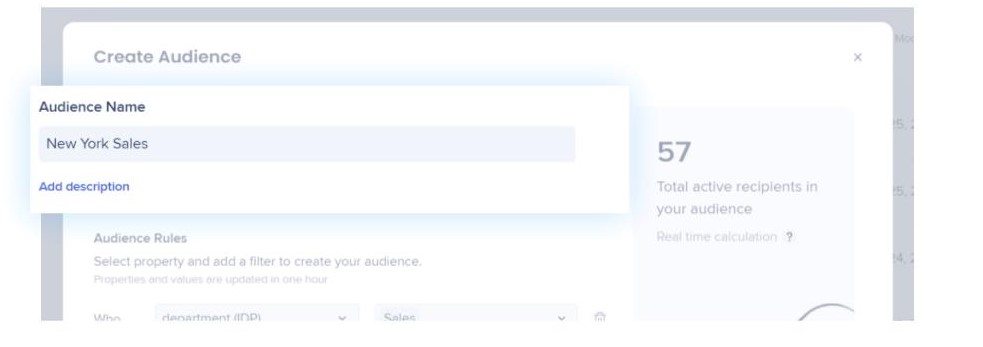
- In the Create Audience panel, enter a name for the audience
- Optionally, add a short description
Tip
You can also create an audience during notification creation. When setting up a notification, go to the Target Audience dropdown and select Create New Audience, then continue with Step 2 below.
Step 2: Add properties and filters
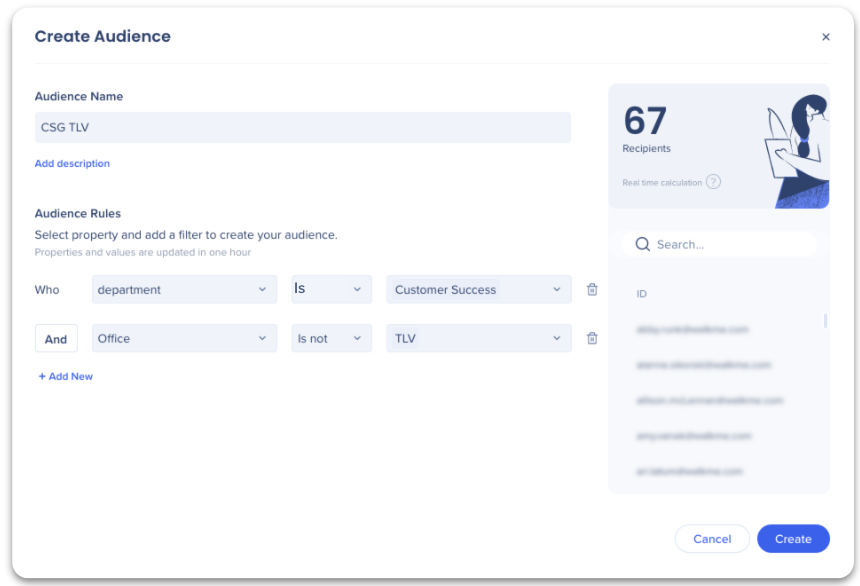
- Under Audience Rules, select the properties and filters relevant to your audience
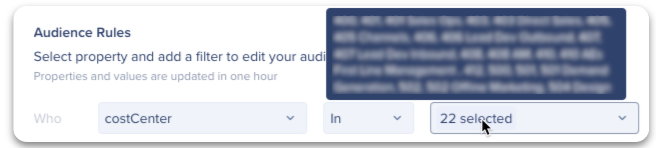
- Tip: To create a custom group, select individual users by their IDs (emails). Hover over a filter to see the list of IDs associated with that property.
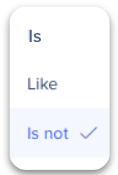
- Use the rules is, is not, or like to narrow down your audience. This works similarly to the Condition Builder
- Check the Total Recipients count to confirm it reflects your configuration. This updates in real time as you add or change properties:
- Active recipients are users who opened the desktop menu in the last 30 days and are authenticated with WalkMe through IDP
- You can search for specific recipients in the list
- Select Create
How to Create and Send a Notification
How to View Audiences
After you've created your Audience, you can easily view who is included in the list.
- Go to the Audience page
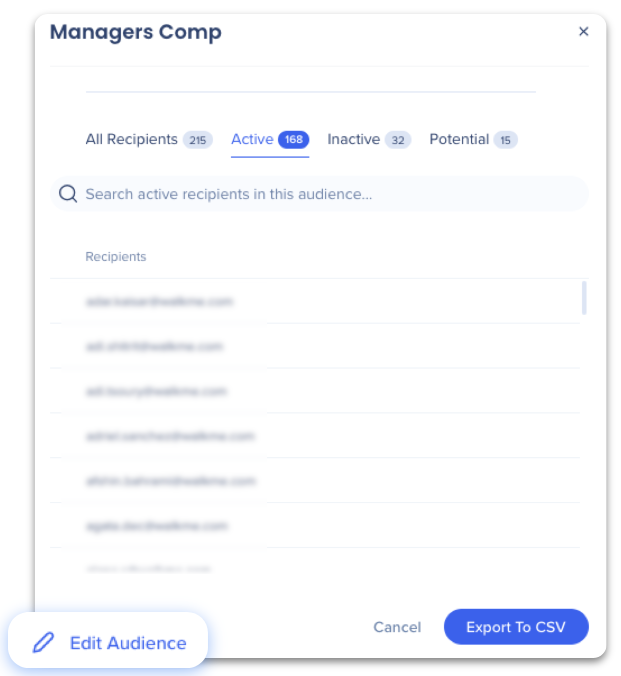
- Select the audience you want to view — a panel opens with the list of recipient emails
- Search for specific users using the search bar
- Select Edit Audience to make changes
How to Edit Audiences
- Go to the Audience page
- Find the audience you want to edit
- Select the Edit icon on the right
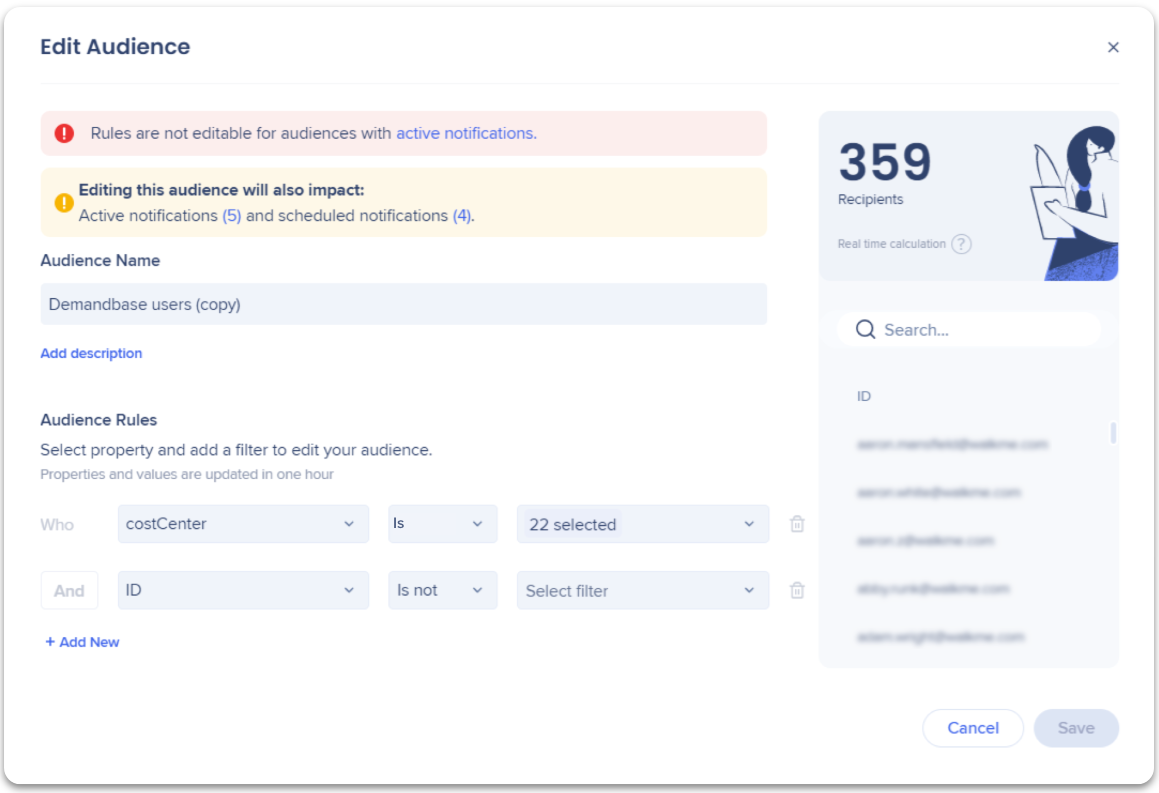
- Edit the name or rules:
- If there are active, draft, or scheduled notifications assigned to this audience, a message lists the affected notifications. Select the number to view them
- Audiences with an active notification can't be edited until the notification is no longer active
- Select Save
Technical Notes
- Audiences with an active notification can't be edited
- Audiences can only be built from IDP data and attributes that exist in the Production environment — other environments aren't supported
- Audience and notification analytics are from the Production environment only
- Supported value types for importing an audience:
- Number values aren't automatically converted to text. To use a numeric property in audience rules, it must be manually set as String/Text type when the integration is configured — this can't be changed after the integration is set up without reconfiguring it.
- Two rules based on the same property can't be created
- All rules use an AND condition — OR is not available


