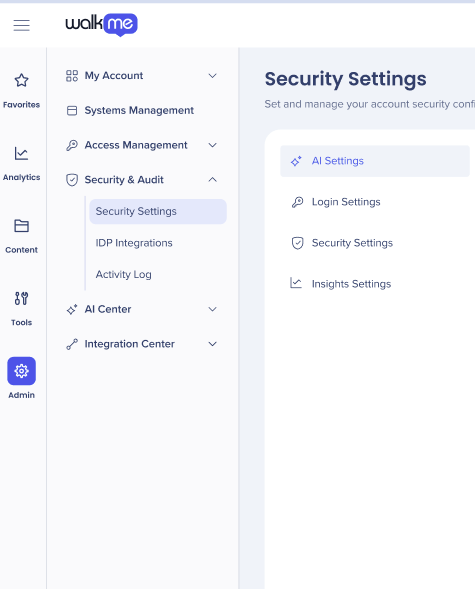
Breve Visão Geral
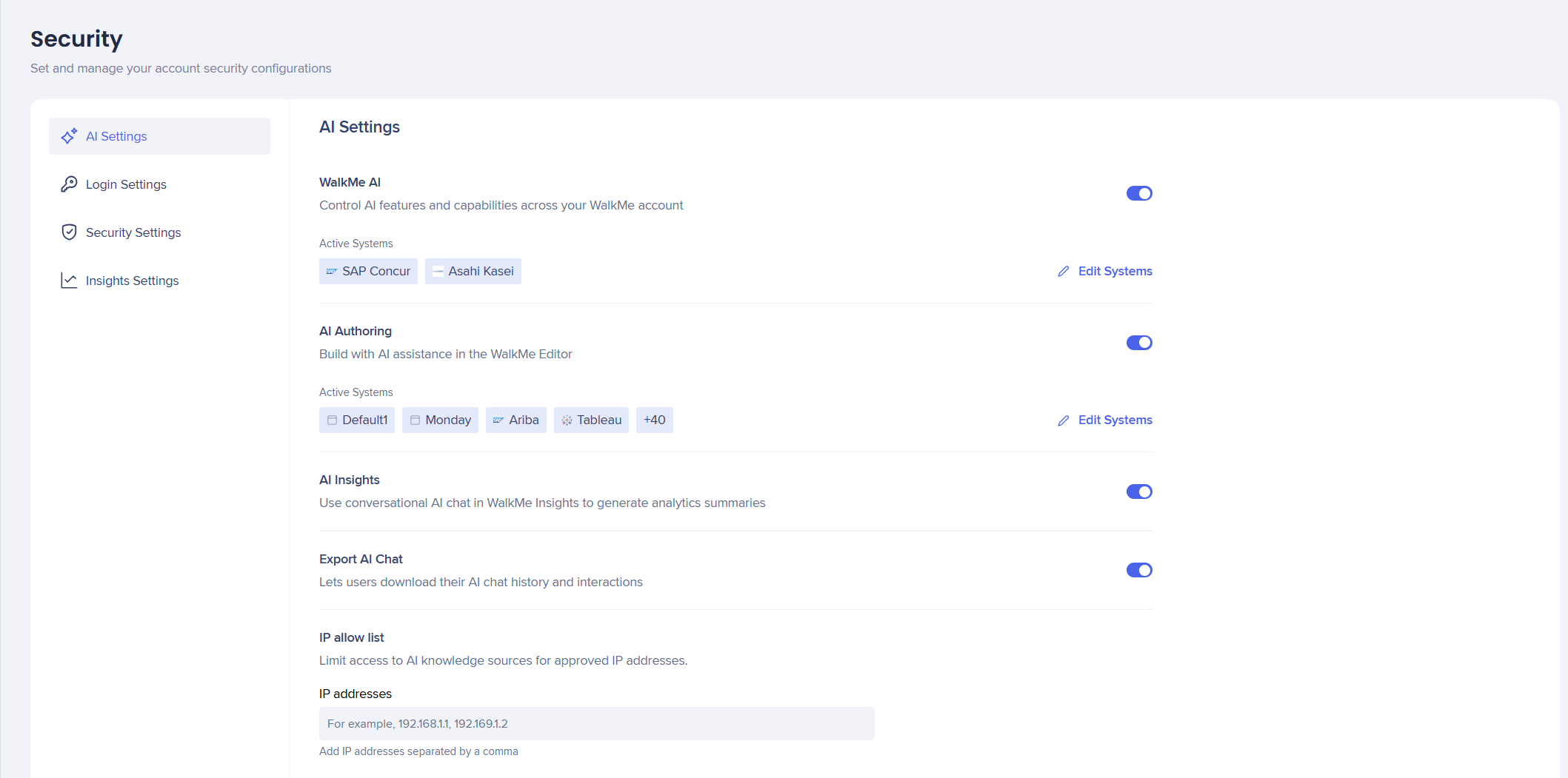
A guia Ajustes de IA coloca todos os recursos de IA em um só lugar, oferecendo aos administradores melhor gerenciamento e controle sobre os recursos e o uso de IA em sistemas e contas.
Acesso
Os clientes devem concordar com os Termos e Condições de IA do WalkMe antes que você possa ativar as opções para ativar ou desativar os recursos de IA.
Configure a disponibilidade da Assistência contextual de IA em toda a sua conta do WalkMe. A ativação desse recurso ativa os pacotes de IA Fixado, Proativo e Sob Demanda para usar inteligência automatizada do sistema para detectar a intenção do usuário, sugerir as próximas melhores ações e melhorar a produtividade e a conformidade gerais.
Isso precisa ser ativado primeiro no nível da conta e depois para sistemas selecionados.
- Ative o WalkMe AI para ativar esses recursos para sua conta e sistemas
About Contextual AI Assistance
A Autoria de IA permite criar e modificar o conteúdo do WalkMe descrevendo o que você quer em linguagem simples, em vez de criá-lo manualmente.
Isso precisa ser ativado primeiro no nível da conta e depois para sistemas selecionados.
- Ative a IA Authoring para ativar esses recursos para sua conta e sistemas
AI Authoring
Insights de IA
O AI Insights é uma ferramenta de conversação com IA via chat integrada ao WalkMe Insights. Ele analisa dados dos sistemas WalkMe conectados e apresenta respostas em linguagem simples
O Insights de IA só pode ser ativado no nível de conta.
- Ative o AI Insights para ativar esses recursos na sua conta
AI Insights
Exportar AI Chat
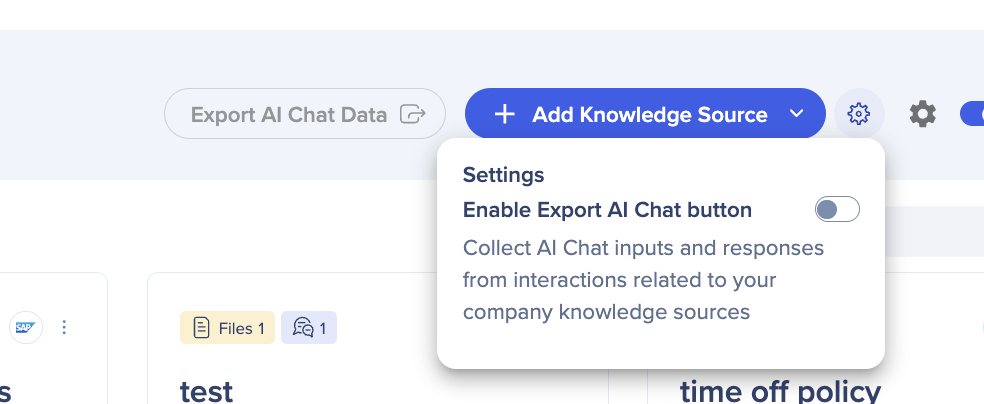
A opção Exportar IA Chat permite que os Usuários coletem as entradas e respostas do IA Chat de interações relacionadas às fontes de conhecimento de IA. Essa alternância estava previamente na Central de IA.
- Ative a opção Exportar AI Chat e ela ficará acessível na Central de IA
Security Settings
Lista de permissões de IP
Isso é para contas com rígidos regulamentos de privacidade que desejam controlar quais usuários finais têm acesso às suas fontes de conhecimento de IA.
Se quiser que todas as suas fontes de conhecimento estejam disponíveis publicamente, não é necessário inserir nenhum endereço IP.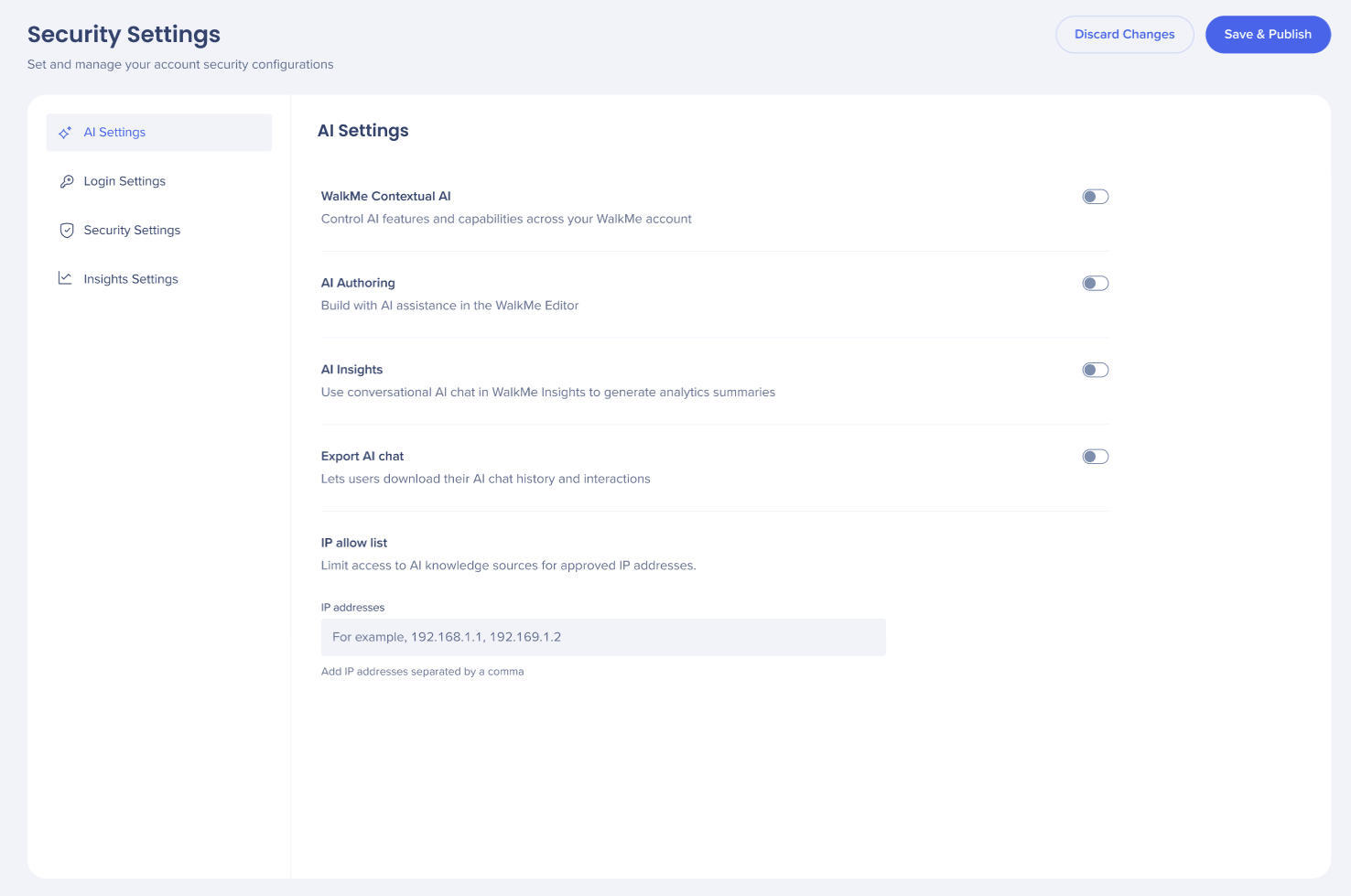
- Adicione endereços IP ao campo, cada IP configurado aparece como uma tag individual no campo
- Escolha Descartar Alterações ou Salvar e Publicar
Observação
Quando o Acesso Público está ativado, qualquer endereço IP pode acessar as fontes de conhecimento carregadas. A lista de restrições de IP é ignorada. Saiba mais
Notas técnicas
- A IA no nível do sistema está disponível apenas enquanto a IA no nível da conta estiver ativada
- IA Chat é suportado apenas com o Menu Pro, não é suportado com o Menu WalkMe legado
- O AI Insights e o AI Authoring não suportam o LLM personalizado