Brief Overview
Admins can easily configure AI Settings, Login Settings, Security Settings and Insights Settings. This gives complete control over many aspects of your WalkMe environment providing a seamless experience for your users.
Security Settings enables configuration of various security aspects for your WalkMe account. Each tab has further features nested below them to enable specifics fucationalities of your account security. 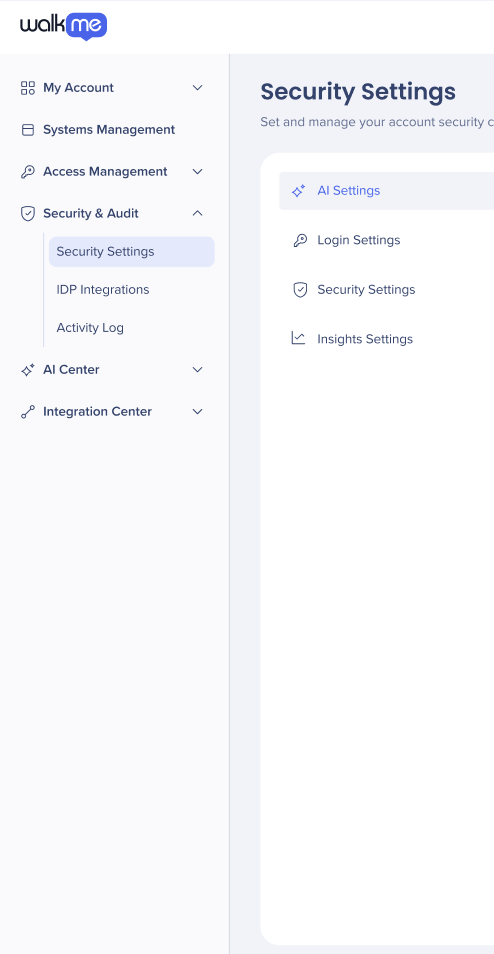
AI settings
The AI Settings tab puts all AI capabilities in one place giving admins improved management and control over their AI features and usage across systems and accounts.
AI Settings
Login settings
Changes to security configurations may impact user access immediately.
Before enabling Single Sign-On, ensure your identity provider is correctly configured to avoid account lockout.
Multi-Factor Verification only affects users logging in via the standard password method.
Administrative permissions in the Admin Center are required to modify these settings.
For advanced integrations, refer to the IDP Integrations article.
Configure Single Sign-On (SSO) to secure your WalkMe users' login process by authenticating through your organization's identity provider. This streamlines access while maintaining strict security standards.
Single Sign-On (SSO)
- Multi-Factor Verification
Add an extra layer of protection with Multi-Factor Verification. This setting is applicable only for users who log in with a password and requires them to provide two or more verification factors to gain access.
Multi-Factor Authentication (MFA)
Social Login lets users log in to WalkMe using their existing social media credentials. This provides a faster, more convenient login experience for users who do not require enterprise SSO.
WalkMe Login
Security settings
Configure an automatic logout from WalkMe applications after a specific period of inactivity. Setting a Session Timeout helps prevent unauthorized access from unattended devices.
Session Idle Timeout
WalkMe Access allows account admins to control WalkMe employees' ability to impersonate users on the account.
Insights settings
A conversational AI chat tool built into WalkMe Insights. It analyzes data from your connected systems and surfaces answers in plain language.
AI Insights
Technical Notes
- Changes to security configurations may impact user access immediately
- Before enabling Single Sign-On, ensure your identity provider is correctly configured to avoid account lockout
- Multi-Factor Verification only affects users logging in via the standard password method
- Administrative permissions in the admin center are required to modify these settings
- For advanced integrations, refer to the IDP Integrations article


