Issue
Onboarding tasks aren't getting crossed off in the menu when users complete them.
How Task Completion Works
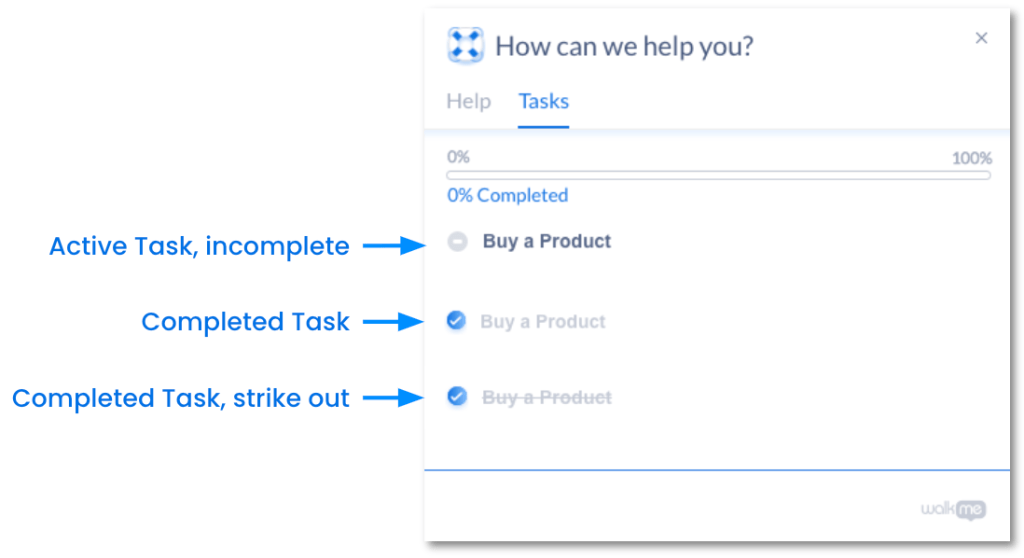
An onboarding task can be either incomplete or complete.
An incomplete task appears clear with a minus icon, indicating the user still needs to complete it. A completed task shows a checkmark and can appear in one of two states depending on your settings:
- Greyed out
- Greyed out and struck through
Solution
Work through the checks below to find the cause.
Turning on "Strike out completed tasks"
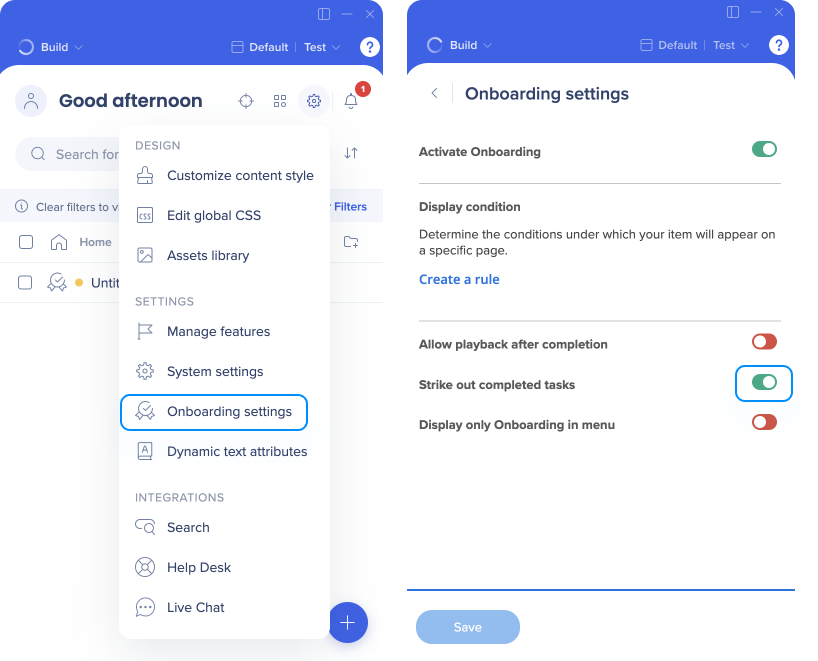
If a task is greyed out but not struck through, the strike-out setting may be turned off.
- Open editor Settings
- Go to Onboarding settings
- Turn on Strike out completed tasks
- Select Save
Defining a unique user ID
Without a unique user identifier, onboarding tasks can't track each user's activity individually. Use a stable identifier like a cookie, variable, or jQuery selector.
To verify user tracking is working correctly, log in to the environment where tasks aren't crossing off, complete a task, then open the browser console and run:
_walkMe.getEndUserGuid()
If the result doesn't match what you'd expect, there's an issue with the user tracking method. Contact Support for further help.
Unique User Settings (UUID)
Verifying Smart Walk-Thru completion
If a task isn't completing, there may be an issue with the Smart Walk-Thru connected to it. Verify the Smart Walk-Thru is working correctly using the Flow Tracker.
Smart Walk-Thrus with branches or "Connect to" steps
Steps with branches or "Connect to" steps won't mark as complete using the Smart Walk-Thru completed goal. If your Smart Walk-Thru has either of these, change the task completion setting to By a Goal and set the goal to trigger on the step just before the branch or "Connect to" step.
To change the completion type:
- Open the onboarding task in the editor
- Under Task completion by, select Goal reached
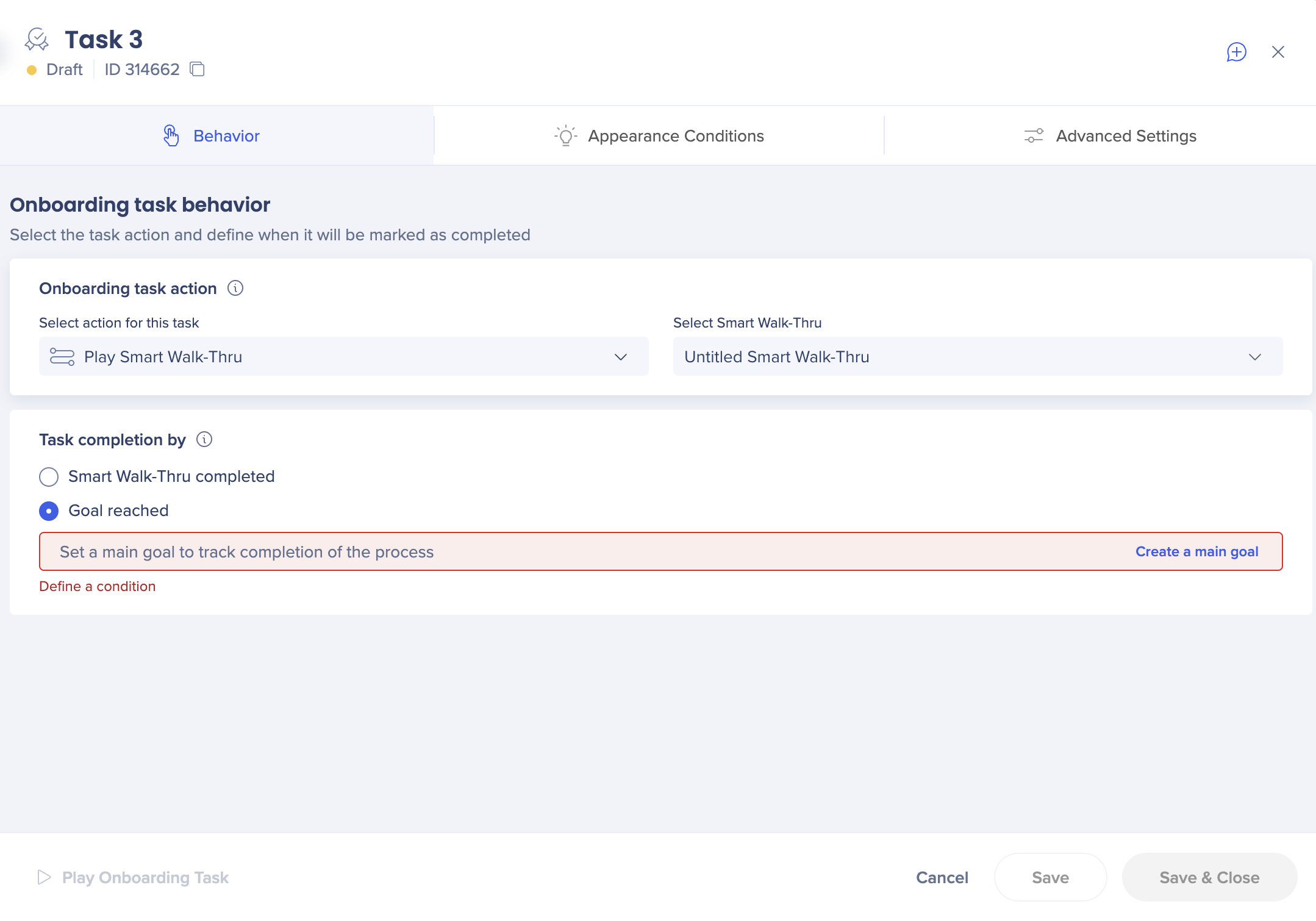
- Select Create a main goal
- In the condition builder, create a goal that evaluates as true on the step before the branch or "Connect to" step
Alternatively, add a WalkMe Data step before the "Connect to" step and create a goal based on the existence of that data. Contact Support for help setting this up.
Set WalkMe Data Flow Steps
Verifying goals
If the task is set to complete by a goal, check the goal rules:
Try to complete the goal rules manually — do they evaluate as true in the condition builder?
- If not, the rule may be set up incorrectly — check the syntax and logic
- If the rule looks correct, contact Support for further help


