WalkMe Discovery: Getting Started Guide

Last Updated April 1, 2026

Brief Overview

Welcome to WalkMe Discovery! This powerful product has been developed to fulfill the vision of Digital Transformation by providing full visibility into your company's tech stack and how your employees are using it, enabling data-driven decisions and a successful DAP strategy.

As the gateway and starting point for integrating WalkMe solutions on various platforms, WalkMe Discovery's insights will help you rationalize your tech portfolio and maximize the efficiency of your investments. Whether you need to cut software spending or improve adoption, Discovery's data-driven approach will guide you towards the right solutions.

In this article, we breakdown each element of the Discovery tool to help you get started. Soon, you'll be on your way to leveraging the full potential of Discovery and transforming your digital strategy.

Access

Access Discovery in the console:

  1. Open the WalkMe Console
  2. Go to the Analytics category
  3. Select Discovery

How It Works

Use WalkMe Discovery to break down how each application in your tech stack is being used based on user activity, department, category, and licenses.

When you access Discovery via WalkMe Console, there are a few pages you can access:

  • Apps: High level visibility into the user engagement of each application in your tech stack
  • Licenses: Aggregates data on the licenses for each application to help you optimize cost or identify efficiency savings
  • Users: How individual employees engage with the tech stack in your organization
  • Departments: Overview of how your tech stack is spread across your organization's departments
  • Settings: Configure data collection and add integrations

Apps Page

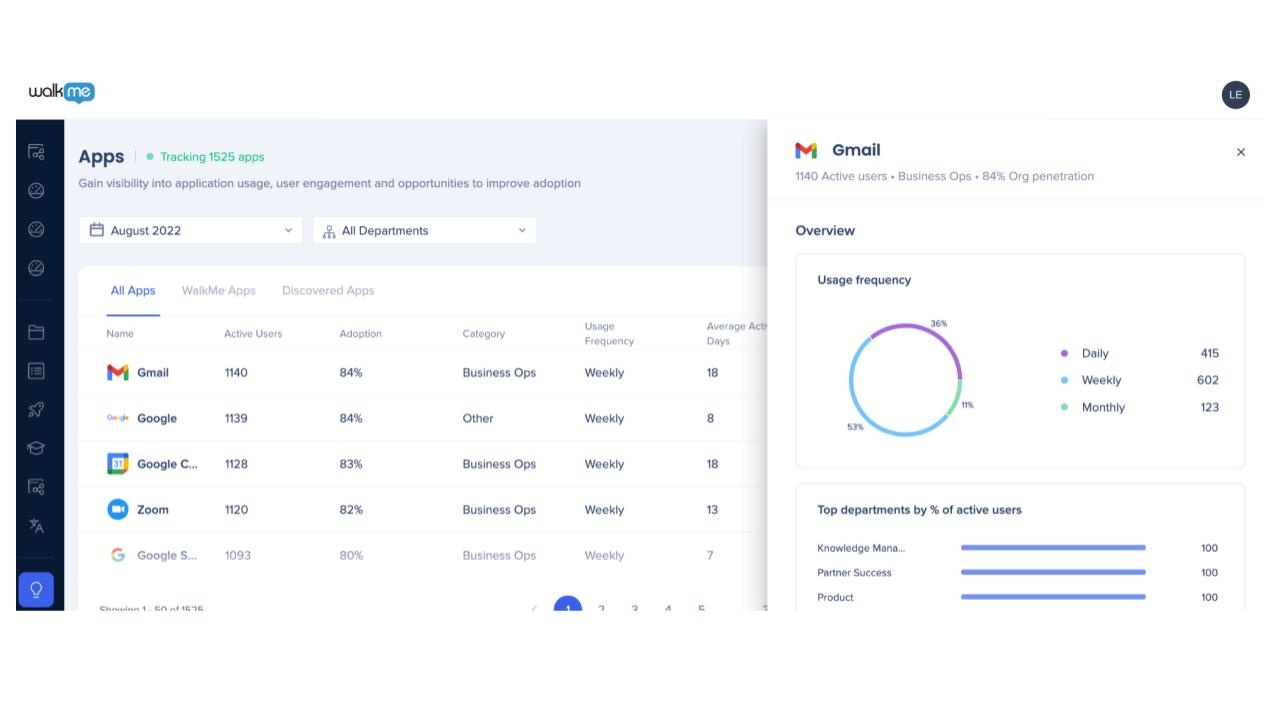
The Apps page provides a comprehensive overview of each app's performance, including the number of active users, organization usage, frequency of use, and weekly time spent. Additionally, it displays the category of the application and indicates whether a WalkMe system has been created for that app. You can click on an app to access a detailed breakdown of its usage, providing further insights.

The app's dashboard shows the following:

  • Name: The name of the application
  • Active Users: Total unique users identified using the app during the selected date range
  • Org Usage: The percentage of your organization who uses the application
  • Usage Frequency: How often the majority of users use the app during the selected date range
  • Average Active Days: Average number of days an active user uses the app in the selected date range
  • Weekly Time Spent: Average number of minutes/hours per week an active user spends in the app
  • Category: Application category name
  • WalkMe System: Indication if WalkMe system has been created for the application
  • WalkMe Apps: Filtered list of apps with WalkMe systems created
  • Discovered Apps: Filtered list of apps without WalkMe systems created

Read more about the Apps page.

Licenses Dashboard

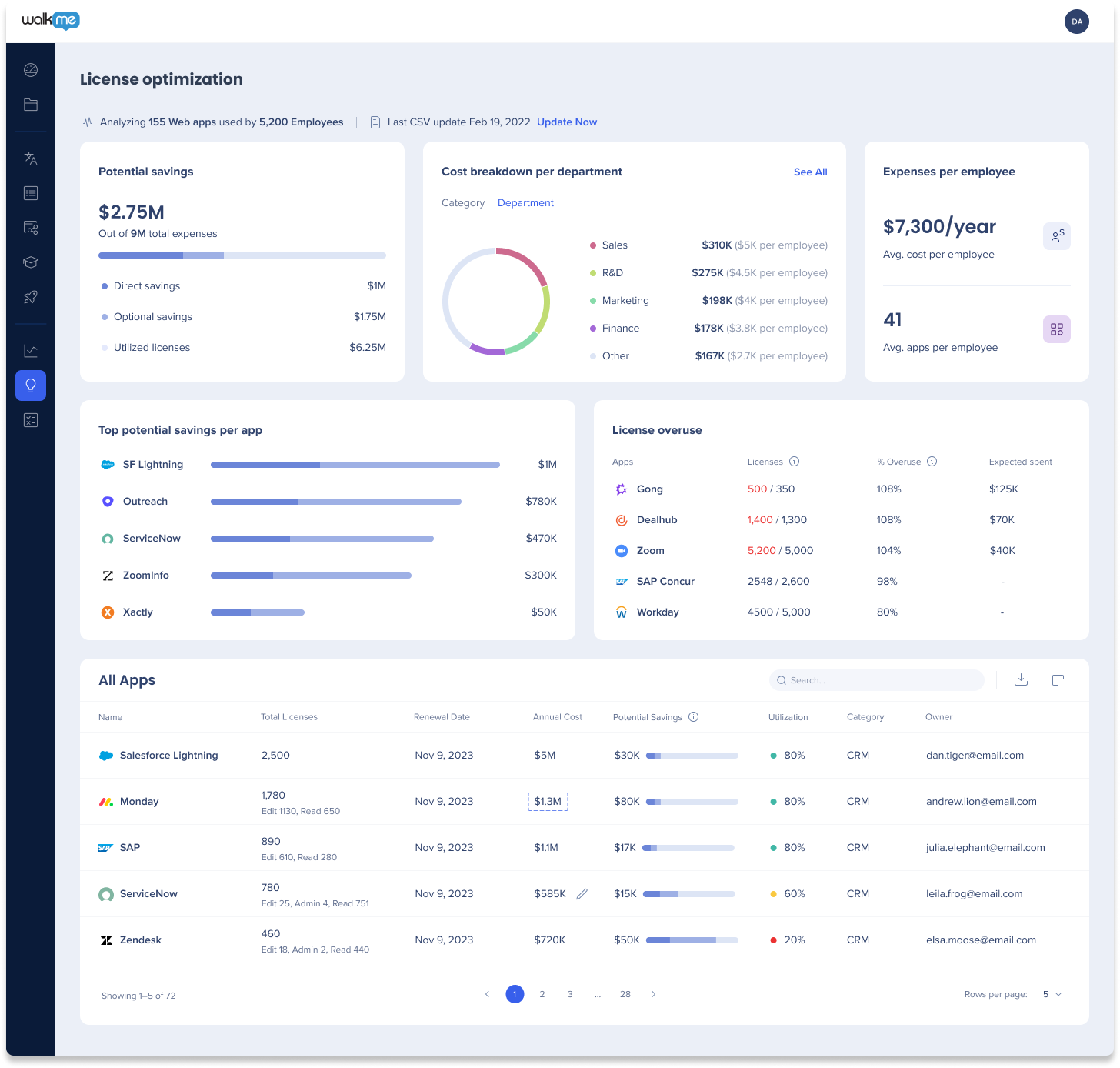
Discovering where you can make software investments more efficient, whether by identifying areas to cut costs on specific software applications, consolidating tools used across different teams, reallocating licenses instead of buying more, etc is now possible in the Licenses Optimization Dashboard. 

Comparing data that you input about your software expenses enables you to realize license inefficiencies instantly and take the next steps to optimizing software spend.

From the licenses dashboard, you can see:

  • Total potential savings: Identify unused and underutilized licenses, and take action to cut costs and optimize your tech stack.
    • Amount of savings based on the number of users that WalkMe identified are not using the software effectively
    • Calculated by the cost of unused licenses plus the additional cost of higher access licenses that users don't need (e.g. they have admin access but only need view access)
  • Cost breakdown by department: See a quick overview of each department's spend.
  • Cost per employee: Total cost of software licenses per user.
  • Apps with the most potential savings: Top 5 apps that the potential saving amount is the highest.
  • License overuse: Top five apps where Discovery identified more users than licenses
  • All apps table: This table lists all of the apps that Discovery identified and breaks them down based on their licenses and costs.

Read more about the Licenses Dashboard.

Users Page

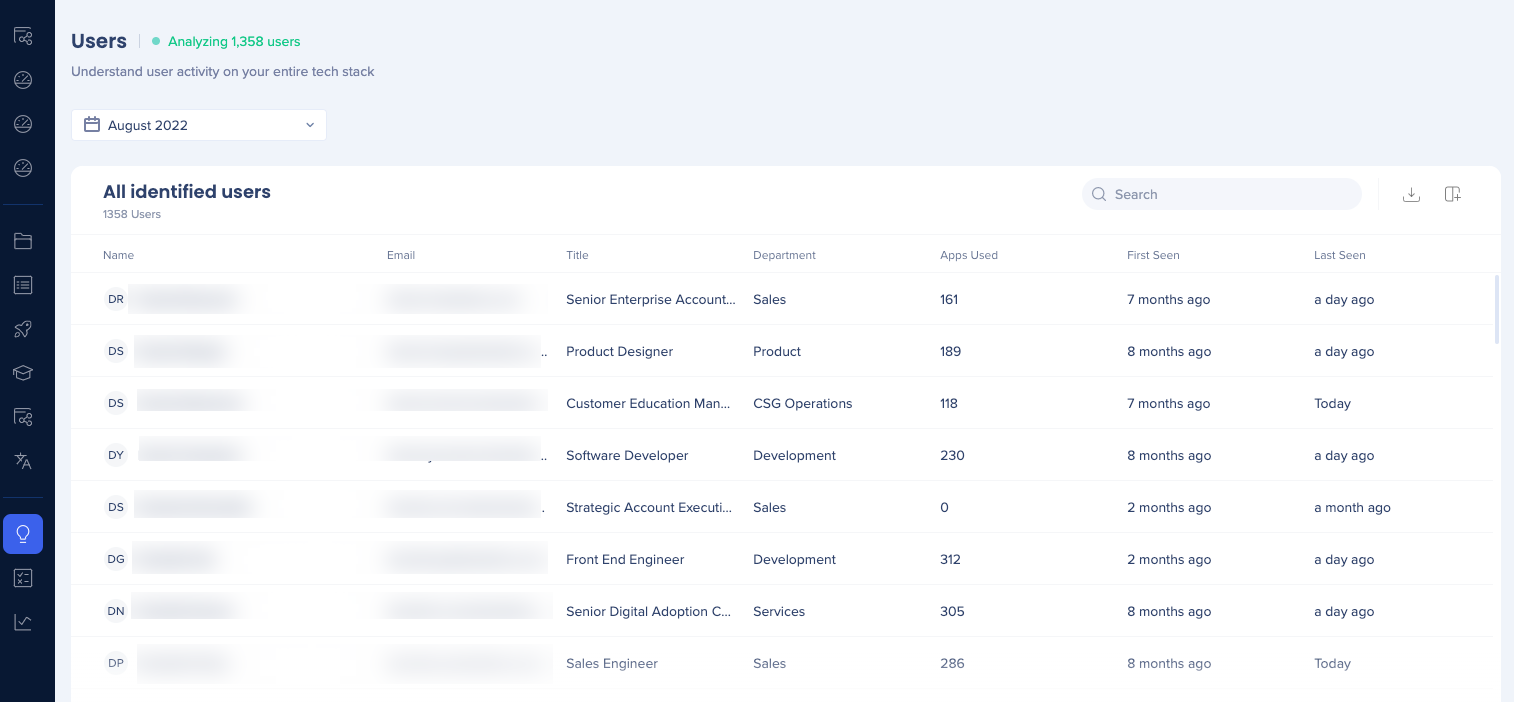
The table on the Users page is an essential component to understanding your tech stack that provides valuable insights into user activity. The table contains user data such as name, email, job title, and department. It shows the number of unique applications used by the user, which enables you to identify the most active users. You can click on the number of apps used by a specific user to view more detailed data on their usage patterns. The table also features timestamps for the first and last recorded event for each user, providing an understanding of user activity over time.

The user table shows user activity in your tech stack. On top of the name and email, you can see the employees:

  • Job title: based on IDP/CSV integration
  • Department: based on IDP/CSV integration
  • Apps used: Number of unique applications used by the user in the relevant period
    • Click on the number of apps used for a specific user to see more detailed data
  • First seen: Date of the user's first recorded event
  • Last seen: Date of the user's last recorded event

Read more about the Users page.

Departments Page

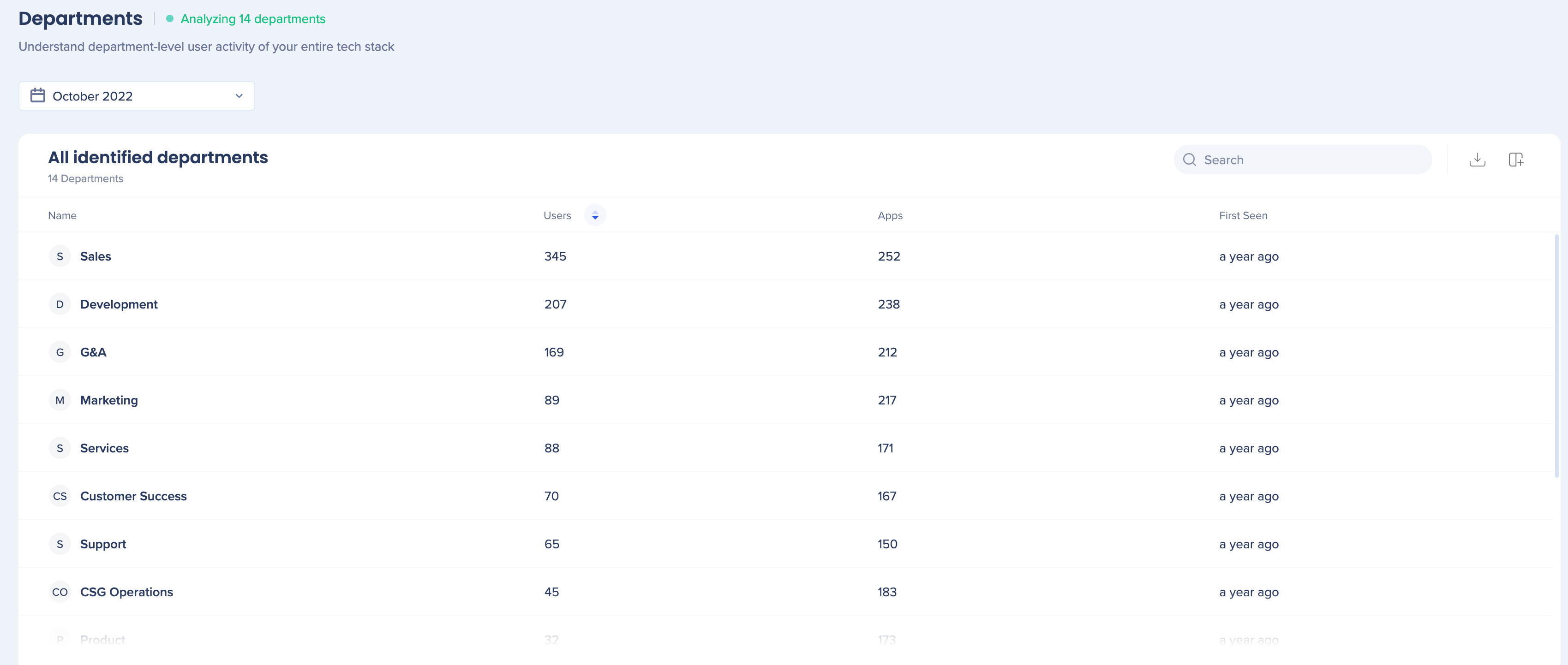
The departments table provides valuable information about the usage of different applications within each department of an organization. It features department names along with the number of users in each department. The table also displays the number of unique applications used by people in each department, providing an understanding of the tech stack used within each department. Additionally, the table includes the earliest date between the first seen of everyone in a particular department, giving insights into the department's technology adoption over time.

The departments table shows:

  • Department name: based on IDP/CSV integration
  • Users: Number of users belonging to the relevant department according to the information that appears in the IDP/CSV integration
  • Apps: Number of unique applications used by the people in that department
  • First seen: The earliest date between the first seen of everyone in that department

Read more about the Departments page.

Settings

The Settings page in WalkMe Discovery provides users with a range of options to add integrations and configure data collection for their Discovery dashboards. Integrations serve as the data source for Discovery and improve the accuracy of the data collected. The WalkMe Extension is one such integration which identifies users and their activity. The Licenses integration is where you upload your CSV with relevant app IDs, app names, licenses count, and licenses costs, which is then aggregated with data collected by the Extension and displayed in the Licenses Optimization Dashboard.

Users and departments can also be configured for data collection settings. Identified users can have their details collected and displayed, requiring IDP or an employee list CSV upload, while hashed users can have their activity collected and displayed without user details. Departments can also have their details collected and displayed, requiring IDP or an employee list CSV upload. These settings allow for a customized approach to data collection and display on the Discovery dashboard.

Additional settings allow for controlling the data collected and displayed in the dashboards. These include a block list to exclude data collection for specific apps, a hide list to remove apps from the dashboard, a minimum threshold for org usage % to include apps in the dashboard, and the ability to choose between IDP or CSV as the data source prioritized.

Was this article helpful?

Thanks for your feedback!

Be part of something bigger.

Engage with peers, ask questions, share ideas

Ask the Community
×
×
The trademarks and product names of Workday, Inc., including the WORKDAY® mark, are the property of Workday, Inc. WalkMe is not affiliated with Workday, Inc., nor does Workday, Inc. sponsor or endorse WalkMe, its services or its website.