Brief Overview
Integrations connect your work apps to WalkMe Menu for Desktop and Mobile so that you have a continuous experience interacting with your organization's tech stack.
Integrating apps boosts digital adoption by eliminating the need to constantly switch between apps to find content – simply search in your menu and it'll display all relevant content across all of your integrated apps.
Get to Know
To connect apps in WalkMe Menu for Desktop go to the Settings page → Integrations tab
Connecting an app adds one or both of the following capabilities:
- Enterprise search
- Homepage widgets
Enterprise Search
Enterprise Search allows users to discover applications and resources with a single unified search.
It helps your business to:
- Provide fast and efficient knowledge discovery, eliminating the need to search across multiple disparate data sources.
- Generate personalized, AI-powered results where users can filter by app and file type.
- Preserve business security and end-user privacy, with zero indexing and respecting access permissions.
Learn more about Enterprise Search.
Homepage Widgets
Some apps have a widget that is added to the homepage. Widgets boost employee productivity by initiating processes directly within the menu and streamline access to commonly used tools and resources.
The widgets provide:
- Frequently used apps and files
- Show critical info and tasks in integrated apps
- Customizable workspace with an easy drag-and-drop menu
Learn more about Homepage widgets.
Multiple Domains
Integrations Multiple Domains allows you to use multiple tenants of the same integration in the menu: search or widgets.
This means that if your organization works with different instances of a service, for example Zendesk, you can easily switch between them and tailor the experience for the relevant audience. With segmentation, you can ensure that each instance is set up correctly and avoid confusion
Segmentation
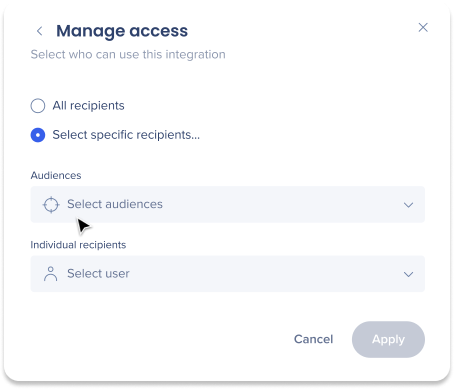
Integrations can be segmented to a sub-set of users and audiences, rather than being enabled for all end-users. This feature streamlines the integration process and helps to ensure that users are only using the integrations that are relevant to their work.
To segment a WalkMe Menu for Desktop and Mobile integration:
- Navigate to the menu Integrations page in the console
- Click the All button on the integration you would like to segment

- Click Select specific recipients in the Manage Access popup
- Select the audiences or individual users from the dropdowns to handpick who can use the integration
- Click Apply
Available Integrations
The available integrations table lists all of the integrations that are available for you to enable for your organization's menu. You can enable integrations in the console: Menu -> Integrations.
After an integration is enabled, depending on the authorization type, the app will be available to connect to the user's menu.
Desktop or Mobile column
This column indicates if the integrations is available on desktop menu, mobile menu or both.
Search or Widget column
Some apps are only integrated to the menu's enterprise search, while others have a homepage widget. Some have both! If this column says Both (desktop widget only) that means that the integration's search capability is available on both desktop and mobile, but only the desktop menu has a homepage widget.
Requires Configuration
This column indicates that there are some steps that need completed in the Integrations page in menu Integrations page in the console before this app can be made available for user's to connect.
Authorization type
This column indicates which of the two available authorization types exist. WalkMe Menu uses two types of secured standards when connecting an integration:
- API Key: Same permissions level for all users to the application. The integration will be connected automatically by default after it is enabled on the WalkMe Console. Learn more about the Integrations page on Console.
- OAuth2.0: Permissions level according to the user's permission in the actual application connected. Usually used when accessing public data / data that do not have permission management (for example, knowledge bases). Integration requires user's consent (connect the app manually) after the admin enables it on Console.
- OAuth tokens may expire after a certain amount of time, based on the 3rd party settings or configurations. If a token expires, a warning will appear in the menu instructing you to reconnect.
Learn more about WalkMe Menu integration security.
Available Integrations Table
Technical Notes


