Brief Overview
If your Smart Walk-Thru stops at a certain step and doesn't proceed, there are several common causes. Use the Flow Tracker to identify where the flow breaks before working through the troubleshooting steps below.
Flow Tracker
Troubleshooting Steps
The previous step was not triggered
The most common cause of a breaking flow is a step that wasn't properly triggered, preventing the flow from advancing.
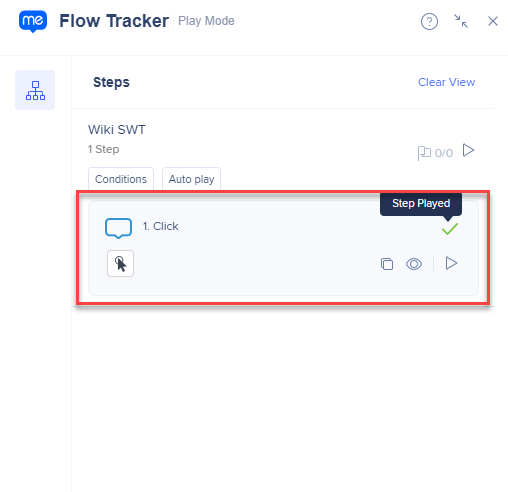
Open the Flow Tracker while the Smart Walk-Thru is playing and identify where the flow stops. If the last step shows a single green check mark ("Step Played"), it was not triggered. Review the step's trigger configuration:
- Click trigger — are users clearly instructed to click the relevant element? Consider increasing the element's clickable area by adjusting precision
- Page Refresh trigger — does the page properly refresh when the user completes the prompted action?
- Custom trigger — confirm the rules are being met in the condition builder. If using jQuery, verify it returns "true" when the element is visible. If not, the selector may be incorrect or the site may have been updated
- Multiple rules — confirm the operators between rules are correct. Consider whether "Or" makes more sense than "And"
If the step shows double check marks ("Step Triggered"), proceed to the next troubleshooting step.
Step element cannot be found
If the Flow Tracker shows the step is "searching for its element," the element may have changed or been updated since the step was built.
Try re-selecting the element or adjusting its precision settings until it is consistently identified.
WalkMe Can’t Find an Element on the Page
Issues with iFrames and Switch to Frame steps
If the flow breaks after a Switch to Frame step, work through the following:
1. Does the flow work in Preview mode but break in the published environment?
This usually indicates WalkMe is not loading in that frame in the published environment.
- For snippet-based implementations — confirm with your site administrator that the WalkMe snippet was added to the cross-domain iFrames
- For extension-based implementations — contact Support to verify the extension is correctly configured to load in that iFrame
2. Was the element originally selected in a QA or sandbox environment?
If the iFrame's domain differs between production and QA, the Switch to Frame step's URL may be misconfigured. Try re-selecting the element in the iFrame to generate a new Switch to Frame step, then compare the URL rules between the old and new steps.
Switch to Frame Flow Steps
WalkMe is not loading on the page
If the flow works in Preview mode but breaks after publishing, WalkMe may not be configured to load on the page where the flow is breaking.
WalkMe Widget Not Appearing
Split and error handling steps not evaluating correctly
If the flow is getting stuck or taking the wrong path at a split or error handling step, the step may be evaluating its conditions before the page has finished loading.
- Add a Wait For step before each split and error handling step to ensure all relevant elements have loaded before the conditions are evaluated
- Confirm that the rules show as "true" in the condition builder when you're on the expected page
- Review the operators between multiple rules — confirm whether "Or" or "And" is correct for your use case
Wait For Steps: Getting Started Guide


