This page explains what changed in the Q4 '26 release, how each update works, and when to use it. It's written for admins, builders, and program owners who want clear, practical guidance.
All updates are available starting November 16, 2026 for US and EU data centers.
What's Included in This Release
This release includes updates across the full WalkMe platform. This page focuses on the following key updates:
- Self-Healing for Smart Walk-Thrus [New]: When an app changes, AI finds the renamed, moved, or translated element and the Smart Walk-Thru keeps going. Builders see how many runs got back on track in Insights and which steps need a fix in Builder Assistant.
- Contextual AI Assistance: The Action Bar comes to 12+ desktop apps with self-service setup in Console, Smart Highlights adds Microsoft Dynamics 365, CSV upload, and custom styling, and AI SmartTips and AI Conditions get easier to find and use.
- Enterprise Digital Adoption: DXA for SAP GUI, clarifying questions in AI Insights, SmartTips built with AI Authoring, SCIM provisioning, and smarter guidance for desktop and mobile.
- WalkMe Learning Arc: Courses published straight to SuccessFactors Learning, an SAP Signavio integration, microlearnings built with AI, quiz and simulation analytics, and more realistic simulations.
➡️ Register now for the Q4 '26 Release Webinar, December 1, 2026
Self-Healing for Smart Walk-Thrus [New]
Q4 introduces a run-time AI layer that helps Smart Walk-Thrus adapt, because every user's screen is different and apps keep changing.
Self-Healing for Smart Walk-Thrus
What it does
When the user's screen doesn't match what the Builder built for, WalkMe AI matches the step's intent to the user's screen, finds the step and the Smart Walk-Thru keeps going. Phase 1 covers elements that load on scroll, were renamed or repositioned on the same page, appear in another language, or shift with screen size. Healed steps appear in a new Builder Assistant recommendation, with the number of steps recovered, the top causes, and a direct link to fix each step. Insights includes self-healing analytics like how many Smart Walk-Thru runs got back on track, and Flow Tracker shows steps healing live, in Preview and in published content.
Notes:
- Self-Healing is off by default. Admins opt in at the account and system level, and builders can turn it on or off for each Smart Walk-Thru.
- Available for web only, on Chrome and Edge, through the force-installed master extension. The store extension and manual installs aren't supported.
- Self-Healing uses DeepUI first and takes a screenshot only when it needs one.
- End users can stop self-healing at any time.
- Phase 1 heals visual, element-based steps that have an intent. It doesn't click, open menus or modals, or move to another page, and it doesn't run on the first step of an autoplayed Smart Walk-Thru. Preview is supported; Play mode isn't.
- Included with Contextual AI at no additional cost. Requires AI Terms & Conditions. Contact your account team with any questions.
Why it matters
Smart Walk-Thrus keep going when a user's screen isn't what the Builder expected, so employees finish their processes as planned. Self-Healing adapts to what Builders can't plan for, like each user's layout, language and screen size, and shows Builders exactly where a permanent fix is needed.
Example use case
Emma is moving from full-time to part-time hours, and an HR partner opens her SAP SuccessFactors profile to update her work schedule. On the HR partner's screen, the Time Information section only loads when they scroll, so step 3 may not find what it's looking for. Self-Healing scrolls, finds Edit and the Smart Walk-Thru keeps going, so the change is made on time and Emma's pay and leave are calculated on her new hours. The Builder sees the healed step in Builder Assistant and adds a wait condition when they have a minute, not in a scramble.
Data Center Availability: US | EU | SAP
Step Intent for Smart Walk-Thrus
What it does
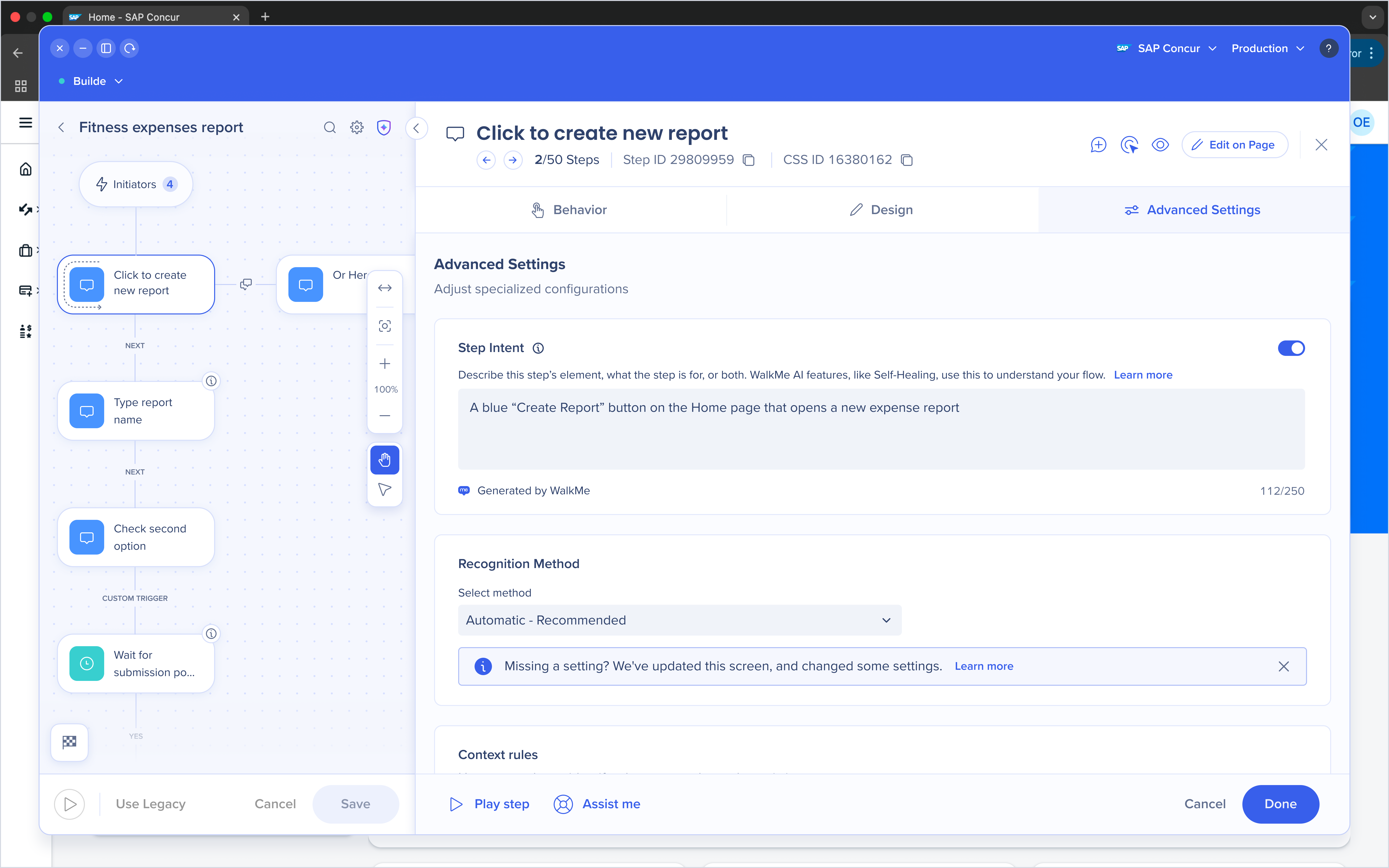
WalkMe AI writes a short, plain-language intent for each Smart Walk-Thru step, describing the element, where it is, and what it's for, like "The Edit button in the Time Information section, which opens the employee's work schedule, so HR can change their working hours." Intents are generated automatically from build-time screenshots, step text, and DeepUI, and update each time the Smart Walk-Thru is saved. Builders can edit them in the editor. A step shows "No intent" when one can't be generated with enough confidence.
Notes:
- Intents are generated for all or most steps once your account is calibrated, which happens when Self-Healing for Smart Walk-Thrus is activated. Self-Healing can only heal steps that have an intent.
Why it matters
Step intents give WalkMe AI a clear picture of what each step is for, which is how Self-Healing finds the right element on the user's screen.
Example use case
A builder reviews a critical onboarding Smart Walk-Thru before turning on Self-Healing. They open each step, check that the generated intent describes the right element, and sharpen one vague description so WalkMe AI knows exactly which "Next" button to look for.
Data Center Availability: US | EU | SAP
➡️ Learn more about Self-Healing for Smart Walk-Thrus
Contextual AI Assistance
Q4 takes Contextual AI Assistance beyond the browser and into the desktop apps where much of the work still happens, and makes AI guidance easier to style, find, and trust.
Action Bar for Desktop
What it does
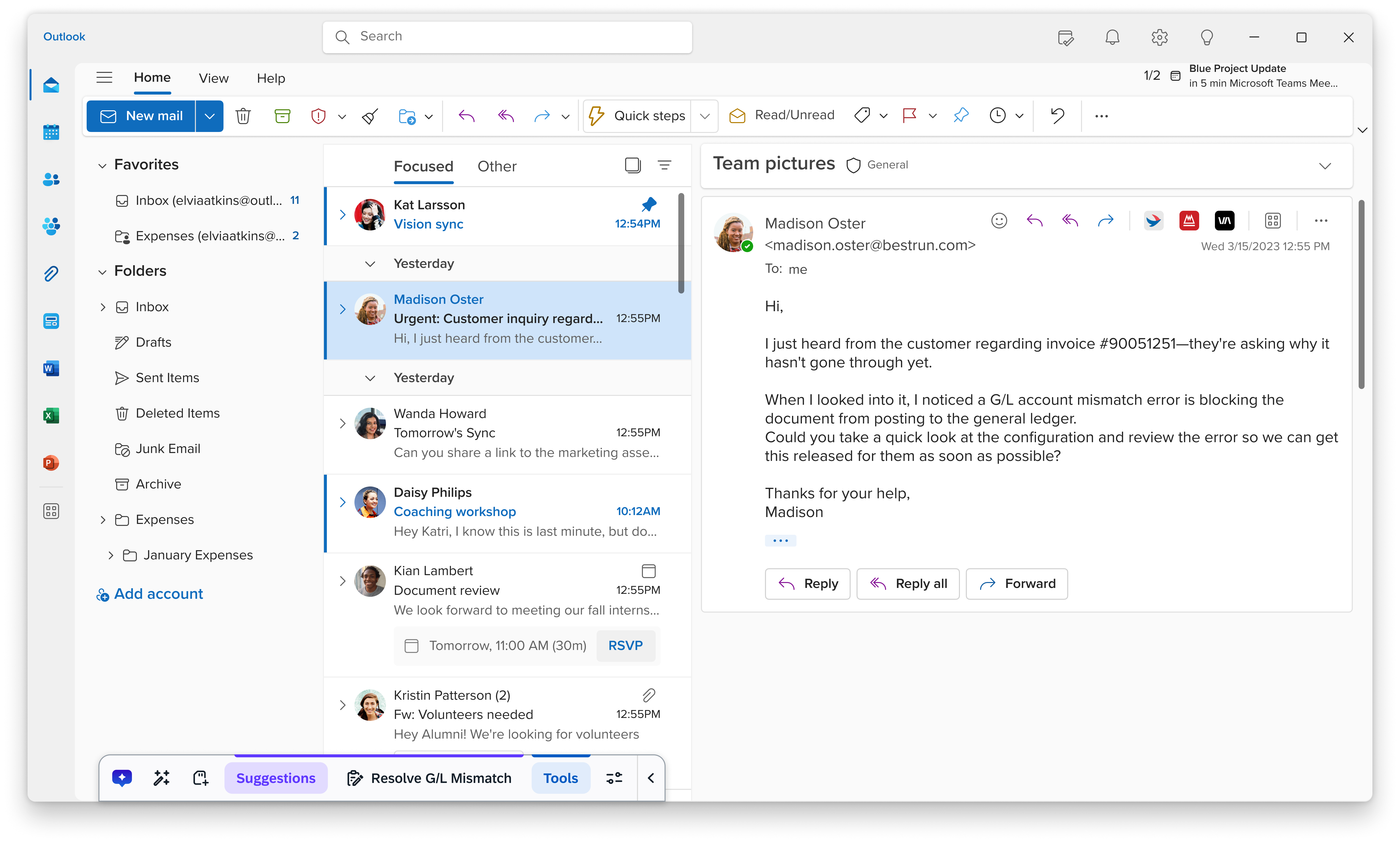
The Action Bar now runs in 12+ desktop applications, including SAP GUI, Microsoft Teams, Outlook, Slack, Excel, and Word. Employees get AI-powered writing help, summaries, contextual actions, and automations without switching apps. Builders enable, configure, and publish the desktop Action Bar directly from Console, with no Backoffice setup required: choose AI or non-AI mode, pick which desktop apps display it, and create contextual launchers. Setup requires Manage Settings permission or Admin access, and any SKU that includes WalkMe Menu for desktop includes the Action Bar in all supported desktop apps.
Why it matters
Less context switching and less repetitive work for employees, and a much faster path to deployment for builders.
Example use case
An accounts payable specialist gets an email in Outlook about an invoice blocked by a G/L account mismatch. The Action Bar flags the error, explains what's wrong, and opens a pre-filled ticket for the G/L team in ServiceNow, so the invoice gets unblocked without copy-pasting between apps.
Data Center Availability: US | EU | SAP
Action Bar: AI segmentation, attention grabbers, and cross-page context
What it does
Builders can give specific user segments the AI Action Bar while everyone else keeps the default Action Bar or legacy widget. Any launcher can carry a badge, like a dot or a "New" label, plus a glow or shimmer animation, with control over how often and how long it shows. End users can save a full page, selected text, or a selected field as context and paste it into conversations on other pages, even in a later session.
Why it matters
Roll out AI at your own pace, point people to what's new, and get answers that draw on information from more than one page.
Example use case
An admin pilots the AI Action Bar with the customer support team first. A "New" badge on the "Summarize case" launcher gets agents to try it in week one, and agents paste customer details from the CRM page into a conversation on the knowledge base page to get a tailored answer.
Data Center Availability: US | EU | SAP
Smart Highlights: New data sources
What it does
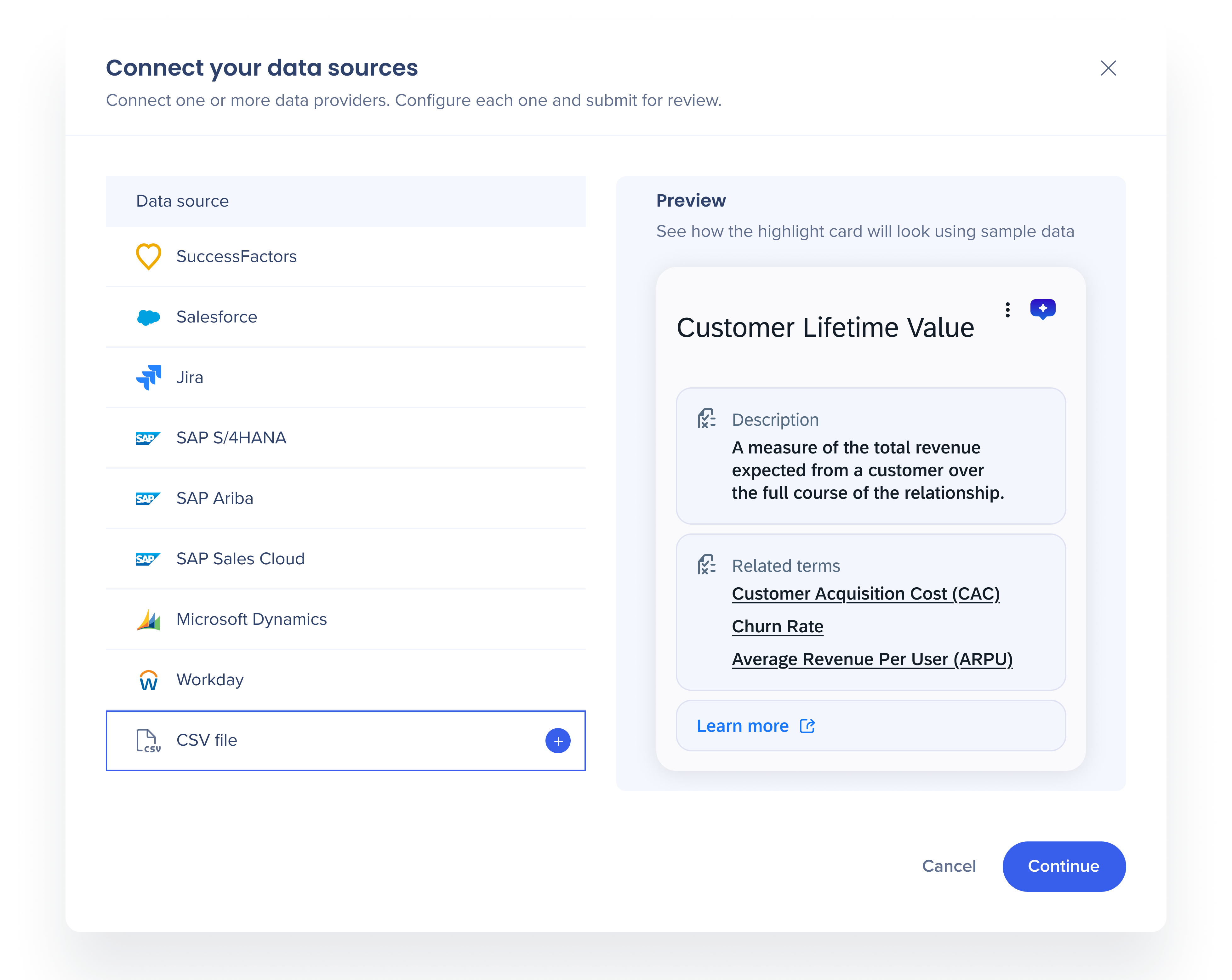
Smart Highlights adds two new data sources. With Microsoft Dynamics 365, account, contact, and lead names are detected on screen, and hovering one shows a card with details from Dynamics, like an account's industry, owner, and status or a contact's title, email, and phone. With CSV upload, admins upload a file from the Smart Highlights page in Console, choose which column's values get highlighted, and map other columns to an Info card (up to 6 fields) or a Glossary (up to 3 sections), with optional links. No API integration or authentication is needed.
Notes:
- CSV: One file per connection, CSV only, up to 10 MB, 10,000 rows, and 50 columns. Data is static, so re-upload the file to refresh it.
- Microsoft Dynamics 365 (phase 1): Account, Contact, and Lead only.
Why it matters
Live context now reaches Microsoft-centric teams alongside Salesforce, SuccessFactors, S/4HANA, Jira, and SAP Ariba, and CSV covers the knowledge no system holds, like internal glossaries and acronyms.
Example use case
New hires keep asking what internal acronyms mean. An admin uploads the company glossary as a CSV, and every acronym on screen now shows its definition on hover, with a link to the full policy page.
Data Center Availability: US | EU | SAP
Smart Highlights: Theming and CSS support
What it does
Smart Highlights follows your account's existing WalkMe theme, and admins can add custom CSS to fine-tune highlight cards for the whole account or per system.
Why it matters
Highlights look like a native part of each app and match your brand guidelines, with no extra setup.
Example use case
A brand team requires every in-app element to match the company palette. The admin's existing WalkMe theme applies automatically, and a few lines of system-level CSS adjust the card font for the HR portal only.
Data Center Availability: US | EU | SAP
AI SmartTips: Multi-source validation and improved discoverability
What it does
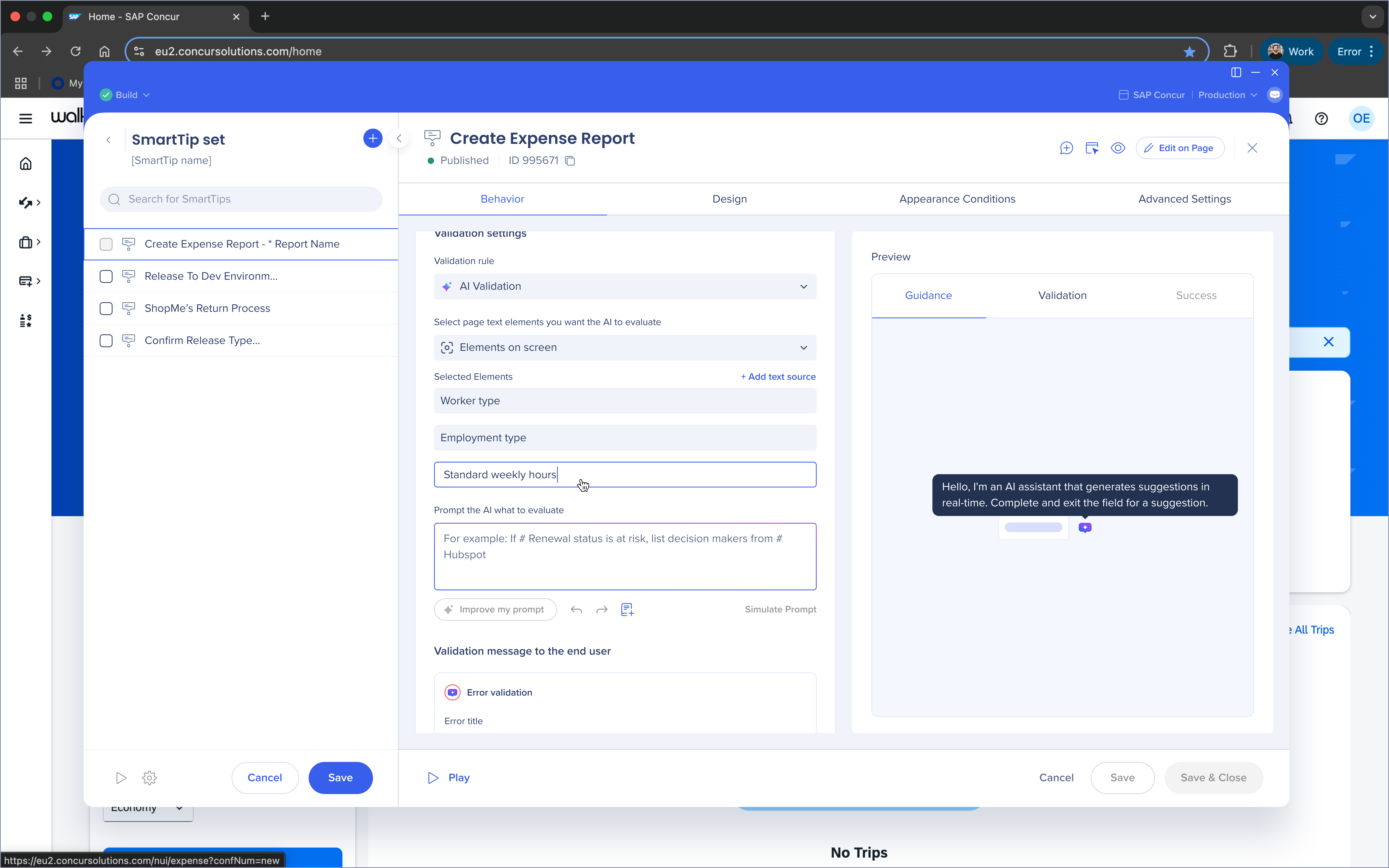
AI SmartTips can validate input against up to 5 additional text sources on the page, like other fields or table rows, not just the captured field. Validation messages appear automatically when the user finishes typing, instead of only on hover, and builders can edit validation and success titles. A refreshed setup makes AI validation the default, and the editor suggests it for custom rules and guidance-only input fields.
Why it matters
Errors get caught at entry, before a form is submitted, and more employees see the message.
Example use case
A procurement form asks for a delivery date and a contract end date. An AI SmartTip checks the two against each other and flags a delivery date that falls after the contract ends, before the request goes for approval.
Data Center Availability: US | EU | SAP
AI Conditions: Improved discoverability and usability
What it does
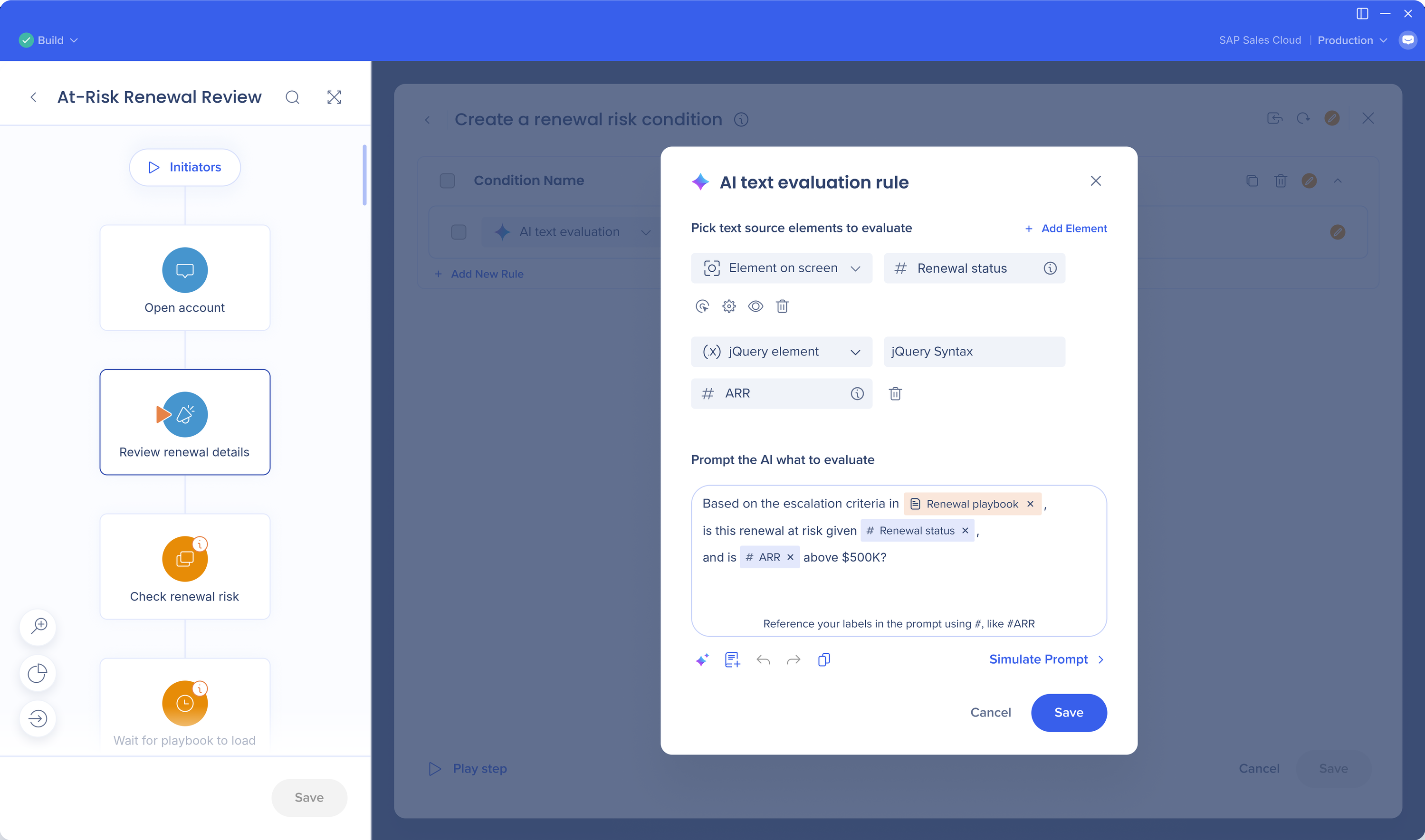
Builders write a plain-language true or false prompt that evaluates text from one or more elements on the page, and can add AI knowledge sources. Built-in prompt improvement and a simulator let builders test the result before publishing.
Notes:
- Prompts must be true or false questions, and results are AI-generated, so test with Simulate before publishing. WalkMe Contextual AI must be enabled on the account.
Why it matters
Target content on what the screen actually says, without stacking element and value rules that break easily.
Example use case
A builder wants a renewal playbook to appear only for at-risk accounts. Instead of chaining five rules, they write "Is the renewal at risk and ARR above $500K?", test it in the simulator, and publish.
Data Center Availability: US | EU | SAP
➡️ Discover the latest Contextual AI capabilities
Enterprise Digital Adoption
Q4 gives builders and admins faster, more transparent ways to build, publish, analyze, and manage WalkMe at scale, on the web, the desktop, and mobile.
DXA for SAP GUI
What it does
Digital Experience Analytics now covers SAP GUI end to end, with insights into T-code usage, user paths, process friction, and errors, so teams can map and optimize workflows.
Why it matters
See how employees use SAP GUI on the desktop, and know where to focus process improvements and S/4HANA migration efforts.
Example use case
An SAP center of excellence is planning its S/4HANA move. DXA for SAP GUI shows which T-codes finance users rely on most and where they hit errors, so the team prioritizes training and guidance for those processes first.
Data Center Availability: US | EU | Canada | FedRAMP | SAP
AI Insights: Clarifying questions and content search
What it does
When a request is open-ended, AI Insights asks clarifying follow-up questions, and the DAP manager or builder answers directly in the UI. AI Insights also finds WalkMe content by the text users see on screen, not just its name.
Why it matters
Get more accurate answers to open-ended questions, and find the right content faster.
Example use case
A DAP manager preparing a year-end QBR asks AI Insights, "How is WalkMe adding value to my organization?" AI Insights asks which systems to include and returns a focused analysis ready for the meeting.
Data Center Availability: US | EU | Canada | SAP
AI Authoring: SmartTips, how-to questions, and one-step restore
What it does
Builders can create and edit SmartTips and SmartTip Sets by describing them in the AI chat in the editor. The AI drafts the guidance, validation rules, and settings, so builders only need to select each element. Builders can also ask how-to questions in the same chat and get answers from the WalkMe knowledge base with links to resources, and restore everything a single prompt created or changed in one action.
Why it matters
Less manual effort to build validation and guidance, answers to how-to build questions without leaving the editor, and more confidence using AI Authoring because any prompt can be undone at once.
Example use case
A builder needs validation on a 15-field onboarding form. They describe the rules in the AI chat, select each field, and review the drafted SmartTip Set.
Data Center Availability: US | EU | SAP
Admin Center and Editor: SCIM, AI permissions, and folder duplication
What it does
Admins can provision and manage users automatically from their identity provider using SCIM. New permissions, including Manage AI Content, control which builders create AI-powered content and who can access Insights and Learning. New Account Overview and System Overview pages give a read-only view of users by role, content, languages, and AI enablement, and admins can enable AI for desktop systems from the Security tab, including in bulk. In the editor, builders can duplicate an entire folder in one action, with its segments, permissions, deployable relations, and version history.
Why it matters
Less manual user administration, tighter control over who builds with AI, and no more rebuilding proven content structures by hand.
Example use case
A company launches WalkMe in a new region. SCIM provisions the regional builders automatically from the identity provider, only the senior builder gets Manage AI Content, and the team duplicates the US onboarding folder as a starting point instead of rebuilding it.
Data Center Availability: US | EU | Canada | FedRAMP | SAP (AI for desktop systems: US | EU | Canada | SAP)
Desktop guidance: SAP GUI positioning, Logic Rules, and Goals
What it does
Balloons and steps in SAP GUI adjust their position at run-time based on available screen space, so guidance isn't cut off near window edges. Desktop systems get advanced Logic Rules, with number and date comparisons, arithmetic, dynamic attributes, and time constants. Goals and Milestones tracking now extends to desktop Smart Walk-Thrus, Shuttles, Resources, and ShoutOuts.
Notes:
- From Q1 2027, Desktop Menu no longer ships new versions or updates for Intel-based Macs. Existing installations keep working, and Apple Silicon continues to receive updates.
Why it matters
More reliable guidance in SAP GUI, more flexible conditions on the desktop, and proof that desktop guidance drives business outcomes.
Example use case
A plant manager works in a maximized SAP GUI window, and guidance used to get clipped at the edge. Now the balloon repositions to fit, a Logic Rule shows a reminder only when an order is more than 30 days old, and a Goal tracks how many orders get closed on time.
Data Center Availability: US | EU | Canada | FedRAMP | SAP
Mobile enhancements
What it does
Builders can create Shuttles, Articles, and Videos in Content Manager and play them in the mobile SDK, and AI Chat can render inside the mobile menu. Smart Walk-Thru steps and ShoutOuts can trigger after a set time, a new segmentation rule targets users from an uploaded CSV list, Content Manager gets a redesigned building layout and Smart Walk-Thru map, and mobile systems can be deployed self-hosted. Insights adds an official native mobile event type and a mobile-tailored view.
Notes:
- Requires mobile SDK 1.3.0.
Why it matters
Mobile guidance gets closer to web, with self-service and conversational support for end users and a self-hosted option for regulated organizations.
Example use case
A bank rolls out a new mobile expense app. It deploys WalkMe self-hosted to meet security requirements, targets a pilot group with an uploaded list of user IDs, and gives employees AI Chat in the menu for quick policy questions.
Data Center Availability: US | EU | SAP
Q4 also includes AI-generated survey CSS from a screenshot (Surveys), one place to configure Menu and AI Chat branding (Web Menu), self-served extension mass deployment through Microsoft Intune for iOS, Android, and macOS, retired accelerators removed across data centers (Solutions Gallery), Insights updates (non-AI launchers in Action Bar reporting, Discovery reports in outgoing integrations, Flow Analytics, Action Bar for Desktop usage, and custom reports for desktop), UI Intelligence support for Japanese-language forms, translations search by deployable ID, Builder Assistant alerts for unexpected changes in Insights data, Insights: Data Alerts [Closed beta], and glossary management for SAP Translation Hub [Limited release]. See the Release Notes for full details.
WalkMe Learning Arc
WalkMe Learning Arc moves deeper into the SAP portfolio this quarter. Authors publish where learners already learn, build faster with AI and reuse, and program owners see exactly where learners struggle.
SuccessFactors Learning integration
What it does
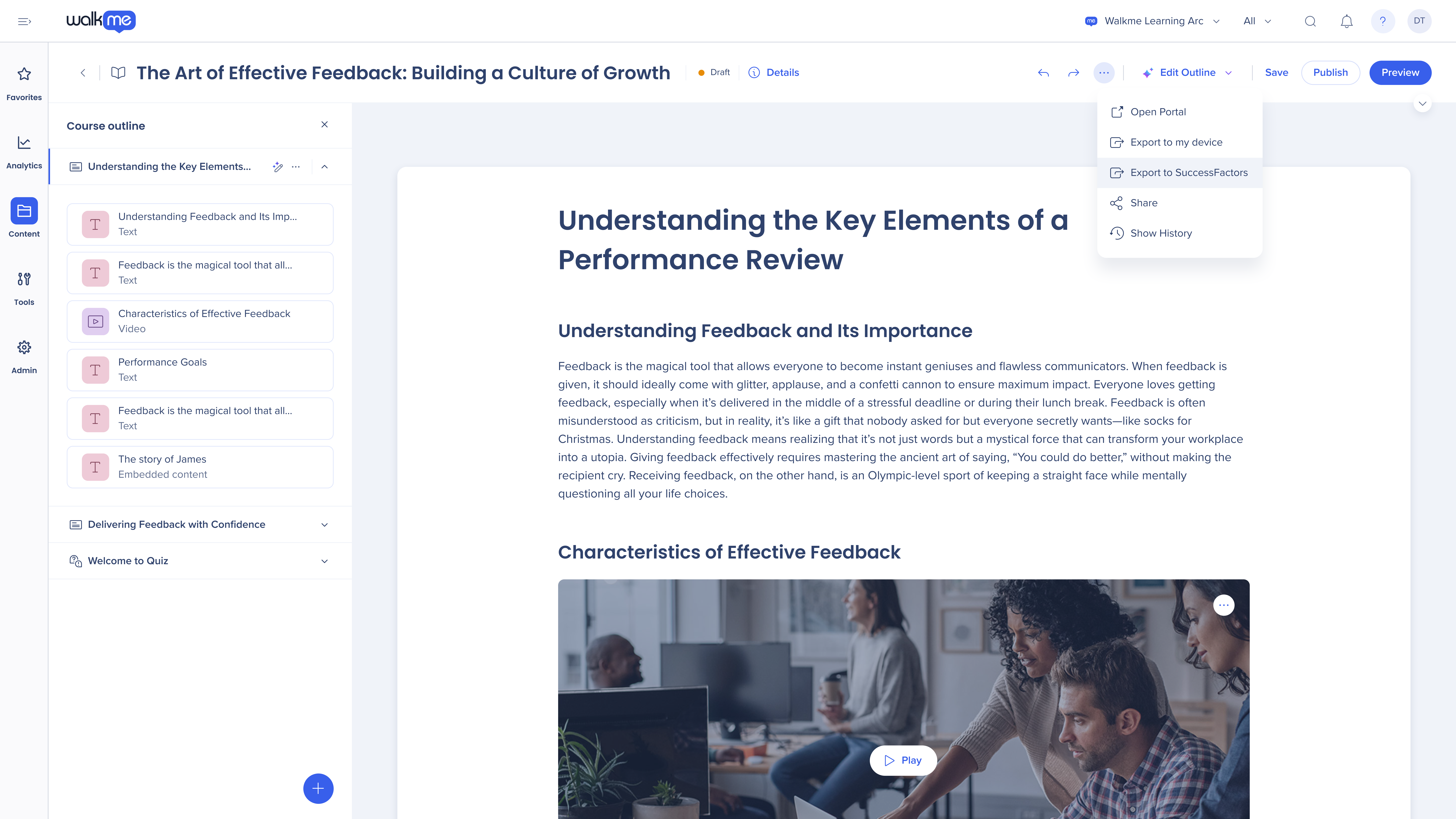
Authors create a course in WalkMe Learning Arc and send it to SuccessFactors Learning for publication in one click. Supports SCORM 1.2, SCORM 2004, PDF, and Word.
Notes:
- Requires active WalkMe Learning Arc and SuccessFactors Learning licenses.
Why it matters
Course handoff happens inside WalkMe, with no manual exports and imports, so courses reach employees in hours, not weeks.
Example use case
An L&D team builds a compliance course in WalkMe Learning Arc. Instead of exporting a SCORM package and uploading it to SuccessFactors Learning, the author sends it in one step and assigns it the same afternoon.
Data Center Availability: US | EU | Canada | FedRAMP | SAP
SAP Signavio integration
What it does
Connect SAP Signavio to WalkMe Learning Arc and import process diagrams into a mirrored folder structure. Learning content added to a step appears on that step in the Signavio Collaboration Hub, and a manual re-sync keeps everything aligned as the process changes. Requires active WalkMe Learning Arc and SAP Signavio accounts.
Why it matters
Learning materials and documentation sit right on the process steps they support, and teams see learning coverage for every process.
Example use case
A process owner maps procure-to-pay in Signavio. The learning team adds a short course to the "Approve purchase requisition" step, and anyone viewing the process in the Collaboration Hub can open it from that step.
Data Center Availability: US | EU | Canada | FedRAMP | SAP
AI microlearnings and content reuse
What it does
Authors create a microlearning with AI straight from the creation popup, using the same guided flow as AI course creation. Existing microlearnings can be added to a course as linked, read-only references, and publishing a change to the original updates every course that uses it. Each asset page shows a usage count and every item that references it. Publishing an update no longer resets learners who are mid-course, and completed content counts both on its own and inside Learning Journeys, so learners don't repeat it.
Why it matters
Start from a draft, not a blank page, update shared content once, and protect learner progress.
Example use case
A security team's "Spot a phishing email" microlearning appears in six onboarding courses. When the guidance changes, the author updates the original once, and every course reflects it without resetting anyone's progress.
Data Center Availability: US | EU | Canada | FedRAMP | SAP (AI microlearning creation: US | EU | Canada | SAP)
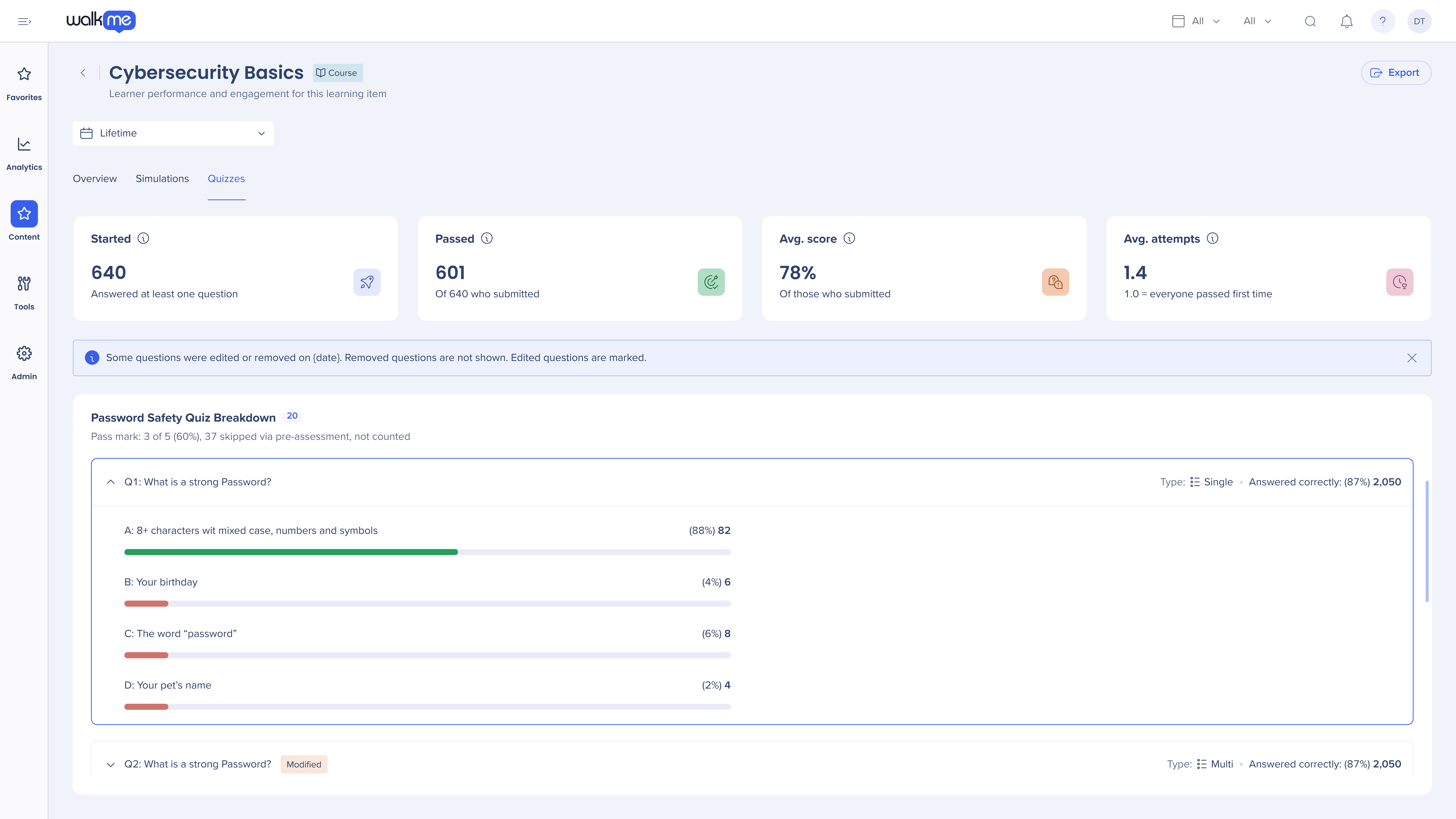
Quiz and simulation analytics
What it does
New Quizzes and Simulations tabs in course analytics show how learners start, pass, and complete quizzes and simulations, and surface the questions learners miss most and the simulation steps where they drop off.
Why it matters
See why a course underperforms, not just that it does, and fix the content instead of guessing.
Example use case
A course has a low pass rate. The Quizzes tab shows that 70% of learners miss the same question, and the wording turns out to be ambiguous. The author rewrites it, and the pass rate recovers the next week.
Data Center Availability: US | EU | Canada | FedRAMP | SAP
Simulations enhancements
What it does
Authors can sequence annotations within a step, group related steps into one unit, record drag-and-drop actions, advance steps as soon as input matches the validation rule, and use zoom controls and copy-paste for annotations. Desktop recordings start from the simulation editor or assets library, highlight elements on hover, and record keyboard shortcuts as steps learners must press. Simulations inherit their source language and can be translated in real time, Practice mode adds a navigation bar, and video exports now include audio and sequenced and grouped steps.
Notes:
- Requires the latest extension and desktop client.
Why it matters
More realistic simulations, faster editing, and a better experience for learners.
Example use case
An author builds an SAP GUI simulation where users must press Ctrl+S to save. The keyboard shortcut is recorded as its own step, so in Test mode learners have to press it, just like on the job.
Data Center Availability: US | EU | Canada | FedRAMP | SAP
See the Release Notes for full details.
Register for the Q4 '26 Release Webinar
December 1, 2026, 11:00 am EST | 4:00 pm GMT
Join WalkMe product leaders for a guided walkthrough of the Q4 '26 Release. You'll see live examples, real demos, and how these new capabilities support adoption and learning at scale.
➡️ Register now
Looking for More Detail?
All product updates will be available starting November 16, 2026. Your current implementation will remain unaffected by the updates until you publish again.
For a complete list of updates, including minor enhancements and fixes, visit our Release Notes and filter by your data center to view details specific to your environment.
🗓️ Data center rollout order
- US and EU: November 16, 2026
- Canada: November 30, 2026
- SAP: December 7, 2026
- FedRAMP: December 14, 2026
Let's Stay Connected
Issues with receiving new updates?
For customers that run WalkMe on their local servers, reach out to your Customer Success Manager or WalkMe contact to learn how you can gain access to these new features.