Kurzübersicht
Die Planung Ihrer WalkMe-Lösung vor der Erstellung macht Ihre gesamte Erstellung effektiver. Die Identifizierung Ihres Anwendungsfalles hilft Ihnen zu entscheiden, welche WalkMe Apps für Ihre Plattform am wertvollsten sind. Die Konzentration auf bestimmte Ziele stellt sicher, dass alle Ihre WalkMe-Inhalte als zusammenhängende Lösung zusammenarbeiten.
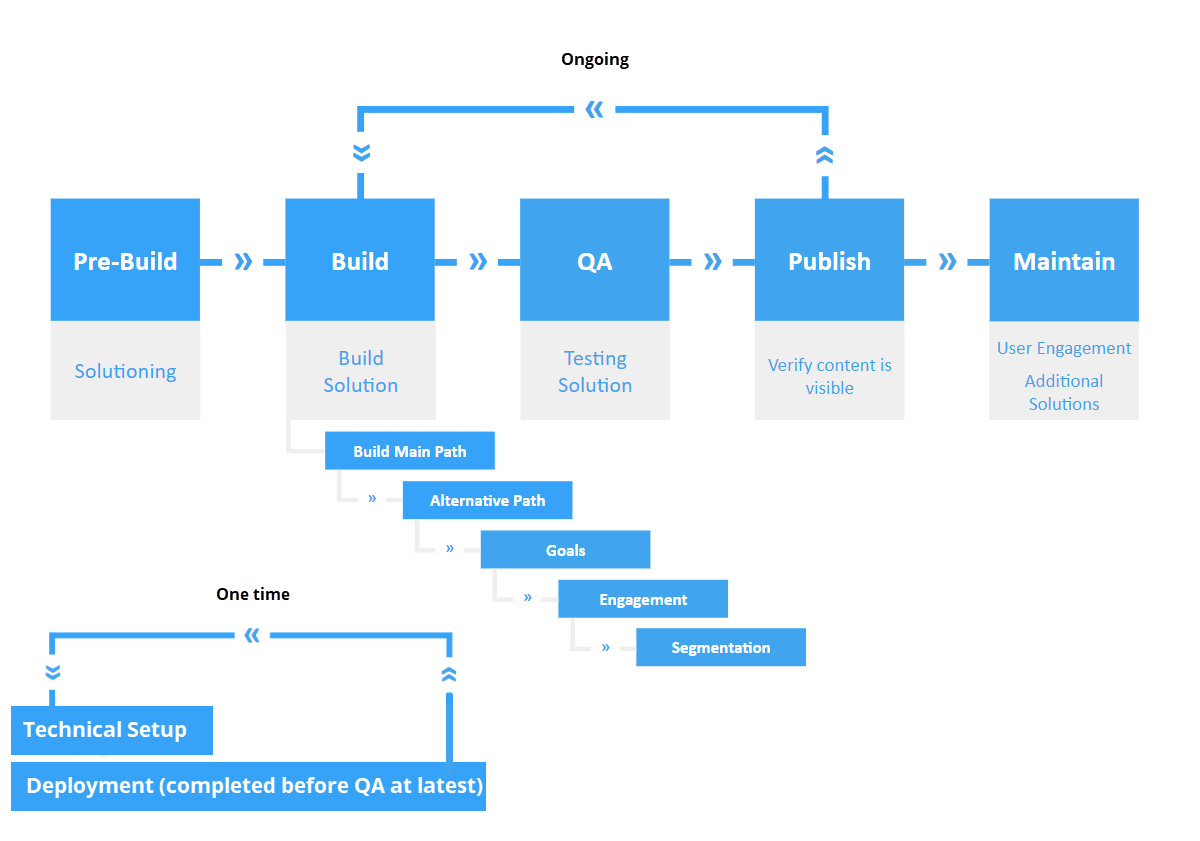
Die Phasen eines erfolgreichen WalkMe-Projekts sind im Folgenden dargestellt. Einige Phasen sind laufend, und zwei davon sind nur einmal pro Plattform. Ihr Customer Success Manager führt Sie durch jede Phase, um sicherzustellen, dass die besten Optionen für Ihre Bedürfnisse ausgewählt werden.
🎓 Digital Adoption Institute
Pre-Build
Während der Pre-Build-Phase identifizieren Sie Ihren WalkMe-Anwendungsfall und legen Sie Ziele fest. Dies hilft Ihnen zu entscheiden, welche WalkMe-Inhalte Ihnen am besten helfen, diese Ziele zu erreichen.
Die Entdeckung des Geschäftswerts
- Welche geschäftlichen Auswirkungen wollen Sie erreichen?
- Was stimmt nicht mit der aktuellen Situation?
- Wie sieht Erfolg aus?
- Wie werden Sie wissen, dass Sie Ihre Geschäftsziele erreicht haben?
- Gibt es einen Maßstab, an dem Sie sich messen können?
- Auf welche Schlüsselprozesse sollten Sie sich konzentrieren, um maximale Auswirkungen zu erzielen?
- Gibt es ein Ziel-Go-Live-Datum?
Technische Entdeckung
- Auf welcher Plattform bauen Sie? Ist sie intern (CRM, HRM) oder extern (E-Commerce)?
- Verwenden Sie eine Erweiterung oder ein Snippet, um WalkMe den Benutzern zu zeigen? Wenn Sie eine Erweiterung verwenden, können Sie dann eine Massenbereitstellung durchführen?
- Gibt es verschiedene Benutzerrollen, Profile oder Standorte, auf die Sie abzielen? Wie können Sie sie unterscheiden (Variablen, jQuery)?
- Wie greifen Sie auf die Plattform zu (Sandbox, Produktion)? Rufen Sie Website-Anmeldeinformationen und URLs nach der Anmeldung ab.
- Gibt es Einschränkungen in Bezug auf Website, Datenschutz oder Daten, die beachtet werden müssen?
Ist die Plattform stabil und wird nicht geändert?
- Benötigen Sie WalkMe-Inhalte in mehreren Sprachen?
- Welches Tracking-Level wünschen Sie? (Standard, DXA, Session Playback)
Identifizieren Sie Ihren Anwendungsfall
Was sind Ihre Hauptgründe für die Verwendung von WalkMe auf Ihrer Plattform?
Onboarding
Verwenden Sie WalkMe, um neue Benutzer durch Prozesse zu führen, die für den Erfolg auf Ihrer Plattform unerlässlich sind.
Empfohlene Inhalte: Smart Walk-Thrus, Onboarding-Aufgaben, Unique User ID, Resources, ShoutOuts und Umfragen.
Support-Ticket-Umleitung
Verwenden Sie WalkMe, um Benutzern zu helfen, Probleme selbst zu lösen, indem Sie sich auf die Probleme konzentrieren, die am häufigsten zu Support-Tickets führen.
Empfohlene Inhalte: Smart Walk-Thrus, SmartTips, Launcher, Ressourcen und Schlüsselwörter.
Funktionsadoption
Verwenden Sie WalkMe, um Benutzer über neue Funktionen zu informieren und sie durch die Adoption dieser Funktionen zu führen.
Empfohlene Inhalte: Smart Walk-Thrus, ShoutOuts, Umfragen und Shuttles.
Konvertierung
Verwenden Sie WalkMe, um Benutzer von kostenlosen Test- oder Demo-Versionen zu führen und zu gewinnen, um die Anzahl der Konvertierungen von kostenlosen in kostenpflichtige Versionen zu erhöhen.
Empfohlene Inhalte: Smart Walk-Thrus, Onboarding-Aufgaben, ShoutOuts und Shuttles.
Benutzerbindung
Verwenden Sie WalkMe, um Benutzern zu helfen, gute Gewohnheiten zu entwickeln und das Beste aus Ihrer Plattform herauszuholen.
Empfohlene Inhalte: Smart Walk-Thrus, SmartTips, Launcher und Automatisierung.
Anmerkung
Die Erstellungs-, QA- und Veröffentlichungsschritte bilden im obigen Flussdiagramm eine Schleife. Sie müssen nicht Ihre gesamte WalkMe-Lösung vor der Veröffentlichung erstellen – erstellen und veröffentlichen Sie jeweils einen Prozess und wiederholen Sie dies dann, wenn Sie weitere Inhalte hinzufügen.
Technische Einrichtung
Sobald Sie entschieden haben, welche WalkMe-Inhalte Ihren Bedürfnissen entsprechen, kann die technische Einrichtung beginnen. WalkMe Services führt dies im WalkMe Editor durch, bevor mit der Erstellung begonnen wird, um sicherzustellen, dass der Editor mit Ihrer Plattform kompatibel ist und über die für die Erstellung erforderlichen Tools verfügt.
Build
In der Erstellungsphase erstellen Sie Ihre WalkMe-Lösung mit dem WalkMe Editor. Es ist in fünf Schritte unterteilt:
1. Erstellen Sie den Hauptpfad
Der Hauptpfad ist die Route, die die meisten Benutzer wählen, um einen Prozess von Anfang bis Ende in einem Smart Walk-Thru abzuschließen.
Smart Walk-Thrus
2. Alternative Pfade hinzufügen
Der Hauptpfad ist die Route, die die meisten Benutzer wählen, um einen Prozess von Anfang bis Ende in einem Smart Walk-Thru abzuschließen.
Splits: Getting Started Guide
3. Ziele festlegen
Mit Zielen können Sie den erfolgreichen Abschluss eines Prozesses durch Benutzer verfolgen, unabhängig davon, ob sie die WalkMe-Anleitung verwenden oder ihn selbst abschließen.
Goals
4. Engagement planen
Engagement stellt sicher, dass Benutzer Ihre WalkMe-Inhalte finden und darauf zugreifen können. Sie können das Engagement steigern, indem Sie ShoutOuts und Launcher erstellen oder Auto-Play-Regeln zu Smart Walk-Thrus hinzufügen.
Engagement Methods
5. Segmentierung einrichten
Die Segmentierung stellt sicher, dass jeder Benutzer nur Inhalte sieht, die für ihn relevant sind.
Segmentation
Bereitstellung
Die Bereitstellung kann so früh wie möglich im Projekt beginnen und sollte vor Beginn der QA abgeschlossen sein. Es gibt zwei Methoden: Snippet und Erweiterung. Ihr Kundenbetreuer wird Ihnen bei der Auswahl der besten Option helfen, und WalkMe Services wird den Bereitstellungsprozess übernehmen.
WalkMe Deployment Overview
Qualitätssicherung (QA)
Die QA-Phase stellt sicher, dass Ihre neuen WalkMe-Inhalte wie erwartet auf Ihrer Plattform und neben Ihrer bestehenden Lösung funktionieren. Sie können die QA im Vorschaumodus durchführen, sobald die Bereitstellung abgeschlossen ist.
Führen Sie zwei QA-Runden in den beiden gängigsten Browsern durch und nehmen Sie nach jeder Runde Anpassungen vor.
Quality Assurance Testing Best Practices By App Type
Veröffentlichen
Die Veröffentlichungsphase beinhaltet die Veröffentlichung von Inhalten in der Testumgebung, das Testen und die Veröffentlichung in der Produktionsumgebung, um sie Ihren Benutzern zur Verfügung zu stellen.
Das Veröffentlichen ist schnell und unkompliziert, solange die richtige Einrichtung vorhanden ist.
Publishing
Verwalten
In der Wartungsphase überprüfen Sie die Ergebnisse – die Engagement-Daten von WalkMe Insights und den Fortschritt bei der Verwirklichung der während der Vorentwicklung festgelegten Anwendungsfallziele.
Insights-Daten helfen Ihnen, Ihre Lösung zu optimieren, indem sie Schmerzpunkte identifizieren und bestimmen, welche Inhalte von mehr Engagement profitieren könnten
Insights: Getting Started Guide
Basierend auf den Ergebnissen umfassen die nächsten Schritte in der Regel:
- Verbessern bestehender Inhalte – Inhalte oder Segmentierungen korrigieren, die nicht wie erwartet funktionieren, Schlüsselwörter hinzufügen, um Inhalte leichter auffindbar zu machen, Ziele oder Funnels hinzufügen, um den Abschluss zu verfolgen.
- Hinzufügen von Zugangspunkten zu bestehenden Inhalten – machen Sie sie kontextbezogener und ansprechender.
- Erstellen von Inhalten für neue Prozesse, die noch nicht abgedeckt wurden.
- Hinzufügen von Funktionen, die in der ersten Phase eine niedrigere Priorität hatten, wie Integrationen, um mehr Nutzen aus der Implementierung zu ziehen.
Brauchen Sie Hilfe? Wenden Sie sich an Ihren Customer Success Manager oder kontaktieren Sie den Support.


